

To set holiday hours on your Google Business Profile, select Edit profile, then Hours. Add a special hours entry for each holiday date. Tick Closed for the days you’re shut, and enter your hours for the days you open. Do it now, weeks before Christmas, so Google Search and Maps show the right hours on the day.
Your regular hours stay as they are. Special hours sit on top of them for the dates you choose.
- Why set your holiday hours early?
- The dates to set for Christmas 2026 and January 2027
- How to add special hours, step by step
- Closed for more than a week? Use Temporarily closed
- Let a staff member do it: add them as a manager
- Match your hours on your website and socials
Why set your holiday hours early?
Set them early because, in our experience, guests plan early. Google shows them whatever your profile says on the day they look.
A guest who drives to a locked gate on Boxing Day remembers it. So does their review.
Google itself says to confirm your hours for official holidays, even when they match your regular hours. A confirmed holiday tells guests your hours are current.
There’s a second reason. In our experience, updating your hours for public holidays tells Google your business is active. That helps your local ranking. When Google emails you asking to confirm your opening hours for a public holiday, click through and answer. We cover those prompts in our guide to tracking AI traffic and improving your Google Business Profile.
The third reason is AI. In our Google AI Mode session, we found AI Mode leans heavily on Google Business Profiles. Our view: if your profile has the wrong hours, expect AI answers drawn from it to get them wrong too.
Google reviews profile changes before they go live, so don’t leave it to Christmas Eve.
The dates to set for Christmas 2026 and January 2027
Christmas Day falls on a Friday this year and Boxing Day on a Saturday. Monday 28 December is a public holiday in every state and territory. The Fair Work Ombudsman’s 2026 list has the details.
Here are the dates most operators need a special hours entry for:
- Thursday 24 December: Christmas Eve. A part-day public holiday from 6 pm in Queensland and from 7 pm in South Australia and the Northern Territory.
- Friday 25 December: Christmas Day.
- Saturday 26 December: Boxing Day (Proclamation Day in South Australia).
- Monday 28 December: an additional public holiday for Boxing Day. In Tasmania, Boxing Day itself moves to this Monday.
- Thursday 31 December: New Year’s Eve. A part-day public holiday from 7 pm in South Australia and the Northern Territory.
- Friday 1 January 2027: New Year’s Day.
- Tuesday 26 January 2027: Australia Day, per the Fair Work 2027 list.
Check your own state’s list for regional holidays too.
Here’s a hypothetical example. A cellar door shuts on Christmas Day and Boxing Day. It opens 10 am to 4 pm on Monday 28 December. It closes at 2 pm on Christmas Eve and New Year’s Eve, and shuts on New Year’s Day. That’s six special hours entries, one per date.
How to add special hours, step by step
Google’s help page lists six steps. You need to be signed in to the Google Account that manages your profile.
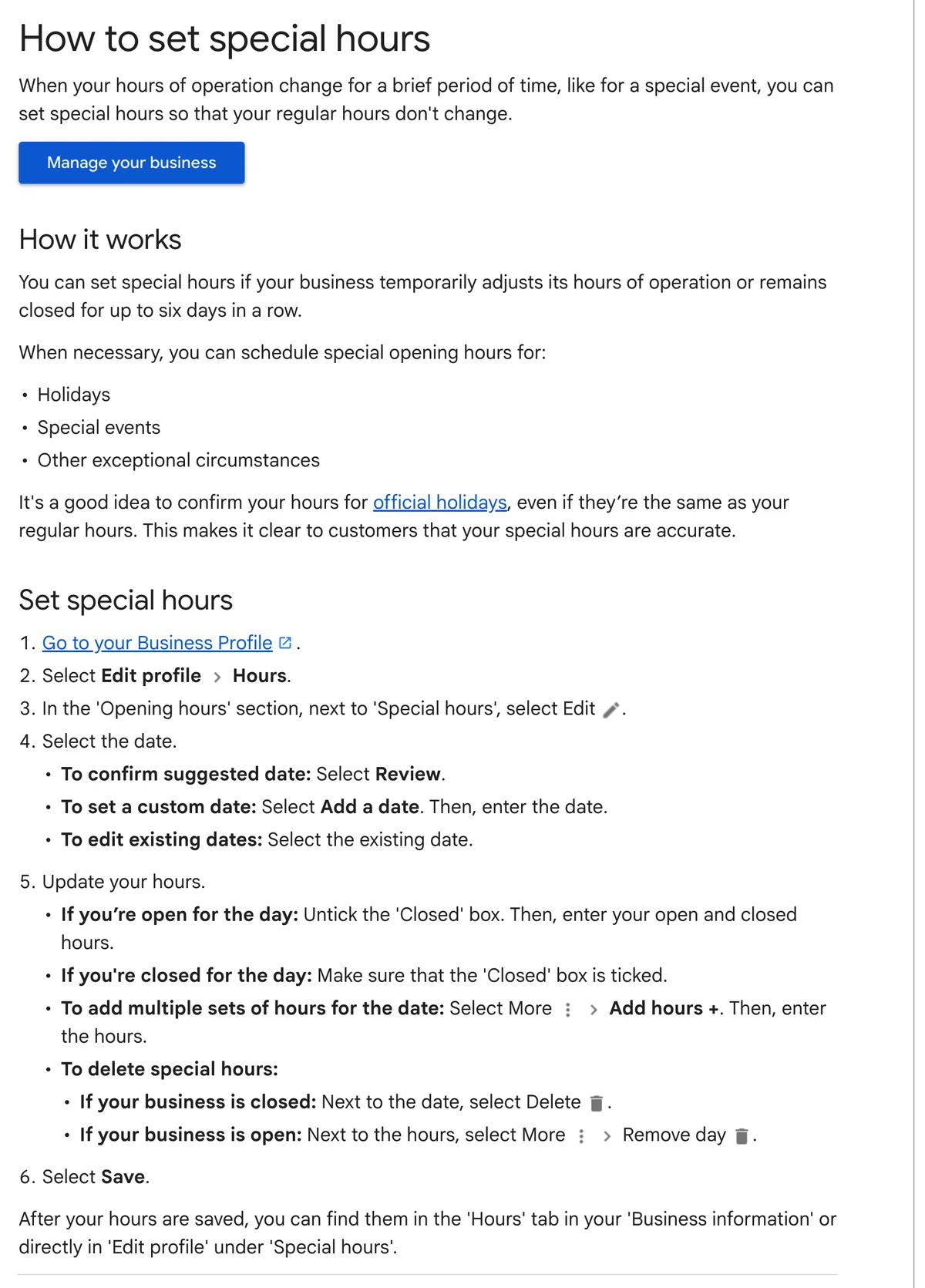
- Go to your Business Profile, on Google Search or in the Google Maps app (tap Business).
- Select Edit profile, then Hours.
- In the Opening hours section, select the pencil (Edit) next to Special hours.
- Pick the date. Select Review to confirm a holiday Google suggests, or Add a date for any other day.
- Set the hours. Tick Closed if you’re shut. If you’re open, untick Closed and enter your opening and closing times. For a split day, select More, then Add hours +, and enter the second set.
- Select Save.
Your special hours then sit under the Hours tab and under Special hours in Edit profile. To remove a closed day, select Delete next to the date. To remove an open day, select More, then Remove day.
A few rules trip people up:
- Special hours only show when your main hours are set to “Open with main hours”. No regular hours on your profile? Fix that first.
- One entry stops at 24 hours. Open from one evening into the next afternoon? Split it into two entries: one to midnight, one from midnight.
- “More hours” is a different feature. It’s for services with their own times, such as takeaway or delivery hours. Holidays go in special hours.
Easy Click Fix’s short video walks through the same screens if you’d rather watch. If your screen looks different, look for Hours inside Edit profile.
Closed for more than a week? Use Temporarily closed
Special hours cover a closure of up to six days in a row. If you shut for more than a week over summer, Google wants you to mark the business Temporarily closed instead.
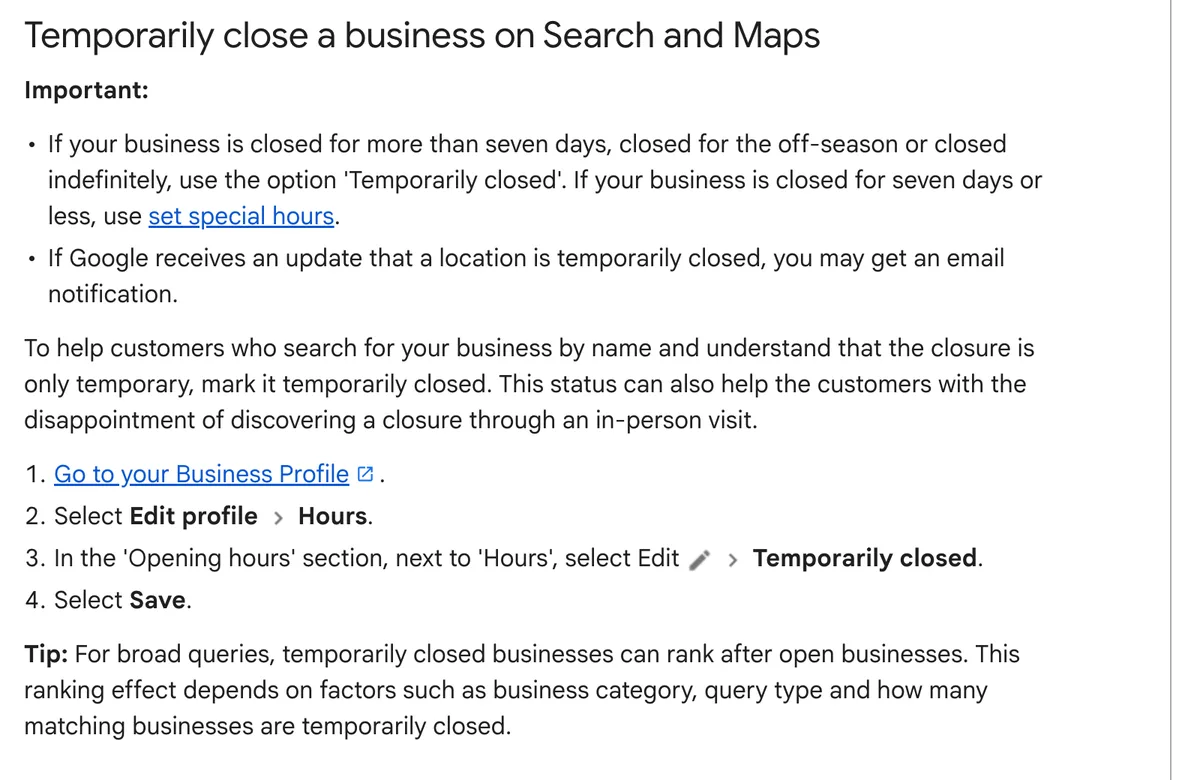
Google’s closure page puts it this way: if your business is closed for more than seven days, for the off-season or indefinitely, use Temporarily closed. Its special hours page draws the line at seven or more days, so the two pages disagree on a shutdown of exactly seven days.
To do it, select Edit profile, then Hours. Next to Hours, select Edit, choose Temporarily closed and select Save.
Know the trade-off before you click. Google’s help page says: “For broad queries, temporarily closed businesses can rank after open businesses.” Someone searching your business by name still finds you, with the closure clearly shown.
Put a reminder in your calendar for the day you reopen. Marking the business reopened is its own step in your profile.
If you close for five days and reopen with shorter hours, stay with special hours. Add one entry per day.
Let a staff member do it: add them as a manager
Add your staff member as a manager on your Google Business Profile. They then update holiday hours from their own Google Account, and you never share your password.
Google’s owner and manager roles work like this:
- Owners have full control. They add and remove people and delete the profile.
- Managers have most of the same access. They edit hours, post updates, add photos and reply to reviews. Adding or removing people, and removing the profile, stay with owners.
To add a manager:
- Go to your Business Profile.
- Select More, then Business Profile settings, then People and access.
- Select Add and enter your staff member’s email address.
- Under Access, choose Manager.
- Select Invite.
Your staff member accepts the invitation and starts straight away. If they leave, an owner removes them under People and access. Their past replies and posts stay on the profile.
Not sure which Google Account runs your profile? Check which inbox gets your Google review notification emails. That account has access. Sign in with it and open People and access, which lists every owner and manager. Only an owner adds people.
In Episode 21 of Untangling Tourism Tech, Fabienne told the story of a cafe owner. She kept forgetting which Google Account ran her profile. She wrote it next to the coffee machine. A shared roster of who logs in, and when, does the same job for a team.
Match your hours on your website and socials
Your Google profile is one of several places guests check your hours. Treat your hours as one set of information that lives in several places. Update them all on the same day.
- Your website. Change the hours on your contact page and in the footer. Our Contact Us page guide covers where hours belong.
- Facebook and other socials. Update your page hours to match.
- A Google post. Announce your holiday hours in a post on your profile. Our guide to writing Google Business Profile posts with AI shows how to write a month of them fast.
- Apple Maps and Bing Places for Business. Update the same holiday hours there too. Our How do I register on Apple Maps and Bing so I show up on more phones? article covers how to keep these updated and in step with your Google Business Profile in the last section.
Do your hours change every season? Add a short FAQ to your website that explains why, such as “Do your hours change over summer?” AI tools answering a planning question then get the reason as well as the times.
Frequently Asked Questions
Do I need to set holiday hours on Google if I’m open as normal?
Yes. Google recommends you confirm your hours for official holidays even when they’re the same as your regular hours. Add a special hours entry for the date with your normal times. Guests then see that your public holiday hours are confirmed and current.
When should I set my Christmas holiday hours on Google Business Profile?
Set them as soon as you know your roster. November is a good time. In our experience guests plan ahead, and Google reviews profile changes before they go live. Setting them early also means you’re ready when Google emails to ask whether you’re open on the public holiday.
What if my business closes for two weeks over Christmas?
Mark your business Temporarily closed instead of using special hours. Google’s help pages say special hours cover up to six days in a row, and Temporarily closed is for more than seven days or the off-season. Temporarily closed businesses sometimes rank after open ones for broad searches. Mark your business reopened the day you’re back.
How does a staff member update our holiday hours without my Google password?
Add them as a manager under Business Profile settings, then People and access. Managers edit hours, posts and photos from their own Google Account. Only owners add or remove people.
Why aren’t my special hours showing on Google?
Check that your main hours are set to “Open with main hours”. Google only shows special hours when they are. Google also reviews changes before they go live, so check your profile again later after you save.
Does updating holiday hours help my Google ranking?
In our experience it helps, because it tells Google your business is active. We said the same about logging in and keeping your profile current in Episode 21 of Untangling Tourism Tech. Answer Google’s emails asking you to confirm your hours, too.
Conclusion
Add a special hours entry for every holiday date now. For most operators that’s 24, 25, 26, 28 and 31 December, 1 January and 26 January. Use Temporarily closed if you shut for more than a week. Add a staff member as a manager so the job never waits for you.
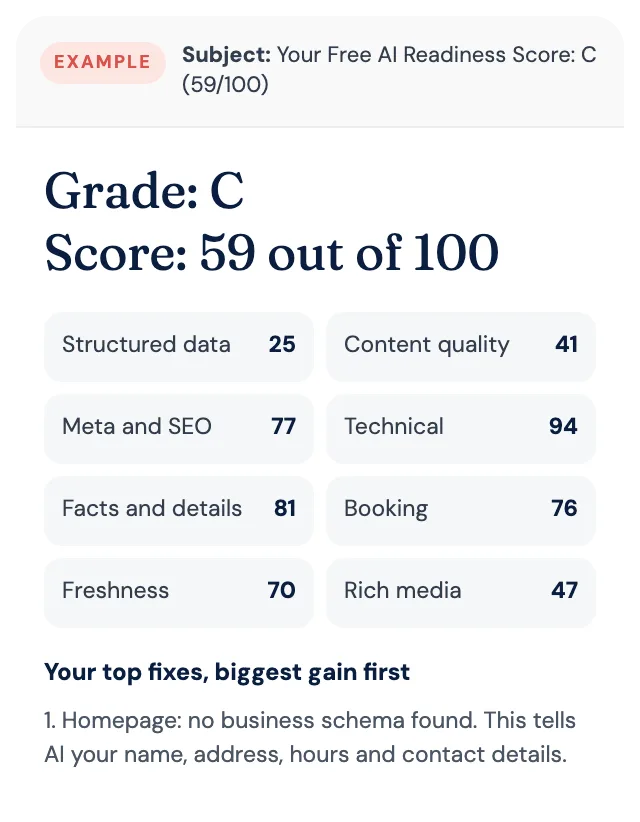
Free AI Readiness Score
How well does AI read your website?
Get your grade, a score out of 100 and your top fixes, by email. Free for tourism operators. No login and nothing to install.