
Set up a second location in this order. Check it qualifies for its own Google Business Profile. Give it a page on your existing website. Then create and verify the profile, match its details everywhere, and give it its own review link.
Get the order wrong and the new site opens for business unseen. Google and AI tools still know only the first one.
- Does your second location need its own Google profile?
- Keep one website and give each location its own page
- Create and verify the new Google Business Profile
- Match the name, address and phone everywhere
- Give each location its own review link
- Check Google and AI tools see both locations
Does your second location need its own Google profile?
Your second location needs its own profile when it’s a real, signed place where customers come to you. A kerbside pickup point doesn’t count.
Google’s rule is one profile per location: “Do not create more than one page for each location of your business, either in a single account or multiple accounts.” Businesses that show an address “should maintain permanent fixed signage of their business name at the address.”
We teach it as one profile per front door. If you operate in more than one place, don’t rely on one listing to cover both.
Here’s how we read Google’s guidelines for tourism:
- A cruise company with a signed ticket office at two marinas: two profiles.
- A hire business opening a second staffed, signed shed in the next town: two profiles.
- A tour company with one office and three kerbside pickup points: one profile, at the office.
- A mobile business with no shopfront: usually one service-area profile. Google allows one profile per location only when each has “separate service areas and separate staff”.
Keep the name the same. Google says “All business locations within the same country must have the same name for all locations.” The exceptions are a separate sub-brand, or sites that “consistently use a different name on their shop front, website or stationery”.
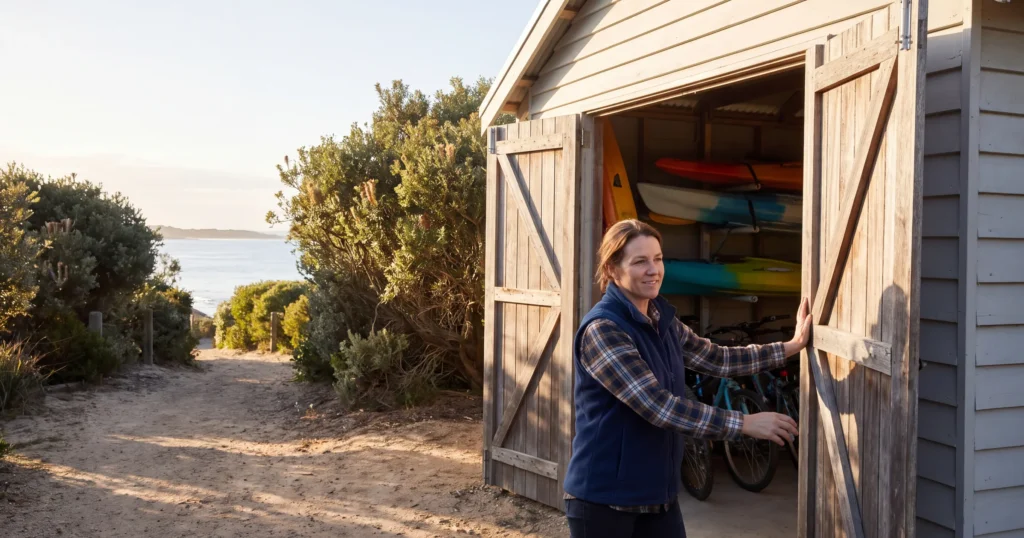
Hypothetical example: a kayak tour company in a coastal town opens a second signed shed 40 minutes down the road. Staff work there every day it trades. That’s two front doors, so it gets two profiles under one business name.
Keep one website and give each location its own page
Keep one website as the hub and add a page for the new location. Most small operators don’t need a second website.
AI tools recommend pages, not businesses. We made this point about tours in our post on why a one-page website hurts your chances with AI. The same goes for locations. A traveller asks for kayak hire in the second town. Your site needs a page about that town to give the answer.
Build the location page before the doors open. Put these on it as visible text:
- The full street address, written exactly as it will appear on Google.
- A local phone number, if that site has one.
- Opening hours for that site.
- The tours, rentals or rooms that run from there, linked to their own pages.
- How to get there and where to park.
- A short FAQ for questions about that site.
Then wire it into the rest of the website:
- Add a Locations item to your main menu, with each location page beneath it.
- List every location’s address in the footer, or on a locations page if the footer gets crowded.
- Give the page a clean web address, such as /locations/second-town, not a string of numbers.
Our coaching rule: separate websites suit a second business with its own name and its own audience. A motel and its public restaurant is the classic case. A second base for the same tours is not.
If your site runs on WordPress with Rank Math, check your schema too. Rank Math’s knowledge base says “The option to add multiple locations is available only in Rank Math PRO.” It adds a locations section with business schema for each site. Our Rank Math schema guide for tourism websites walks through the settings, and who on your team should change them.
Create and verify the new Google Business Profile
Create the profile once the signage is up and the site is staffed. Google verifies the place, so it needs to look like a business on the day.
Google’s steps:
- Go to business.google.com/add.
- Click Add your business to Google.
- Fill in the details on screen. Use the same business name as your first profile.
- Select a verification option and follow the steps.
You don’t pick the method. Google says “Verification methods are automatically determined by Google and can’t be changed.” The options include phone or text, email, a live video call and mail.
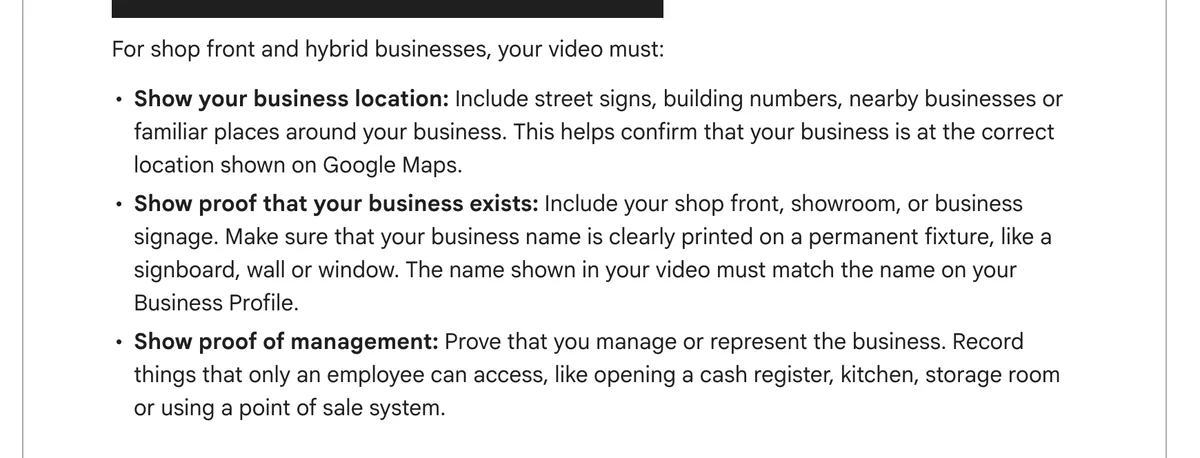
Be ready to record a video. Our coaching notes flag that an extra profile sometimes needs video verification. Google’s video page asks you to:
- Show the location: street signs, building numbers and nearby businesses.
- Show your business name “clearly printed on a permanent fixture, like a signboard, wall or window.”
- “Record things that only an employee can access”, such as a point of sale system or storeroom.
- Film one take. Google wants it “At least 30 seconds long” and “An unedited, unique and complete recording with no breaks.”
Google says “verification reviews take up to five working days”. If Google mails you a code, don’t edit the business name, address or category until you’ve used it. Google says the code won’t work if you do.
Two settings to get right on the new profile:
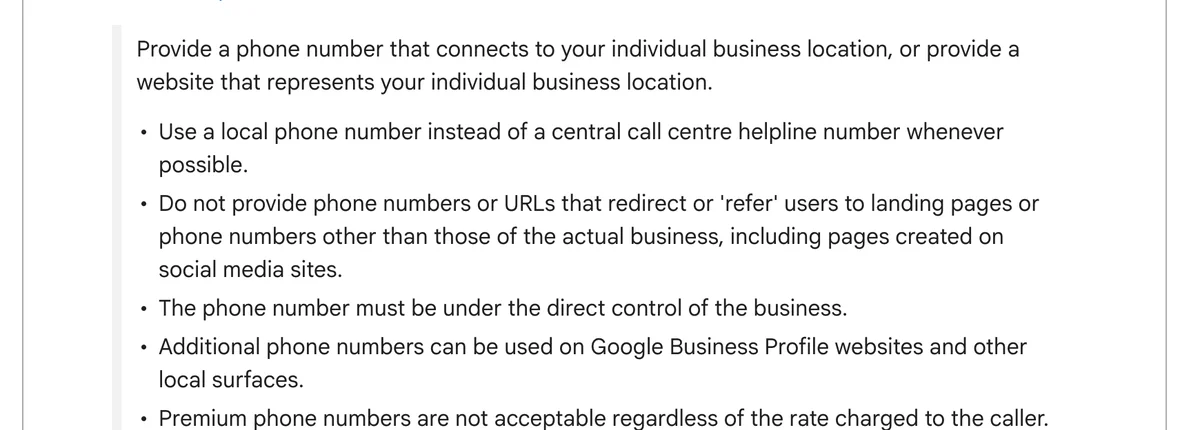
- Website link. Google asks for a local phone number or “a website that represents your individual business location.” Our reading: point the second profile at its location page, not your homepage.
- Phone. Google wants a local number “instead of a central call centre helpline number whenever possible.”
If more than one person manages your profiles, set up a business group. Google calls it “like a shared folder for your profiles”. It’s safer than sharing one username and password.
Once it’s live, fill the profile out properly: categories, photos, hours, and your tours under tickets and activities. Our Google Business Profile session recap covers each section. To write the description and services for the new site, use our guide to writing your profile with AI.
Match the name, address and phone everywhere
Write each location’s name, address and phone number exactly the same way everywhere they appear.
We call this the NAP rule. In our training, a business with mismatched details stays listed but stops showing up in local search.
Check the new location’s details in these places:
- The location page and the footer of your website.
- The new Google Business Profile.
- Apple Maps and Bing Places. When the listings match, Bing overwrites its own listing with your Google data, so fix Google first. Our Apple Maps and Bing Places guide covers both, including when Apple treats a property as its own location.
- Your ATDW listings. Separate listings for separate product categories put you in more places on state and regional tourism websites. ATDW listings expire every 12 months unless you update them.
- Tripadvisor and other directories, and your social media pages.
Our older guide to updating your business listings on third-party websites has the steps for Tripadvisor and ATDW.
Give each location its own review link
Each Google profile has its own review link and QR code. Send every guest the link for the site they visited.
A review on the wrong profile builds the wrong site’s rating. Our reading: it’s also at risk under Google’s fake engagement rules, which remove content that “does not accurately represent the location”.
Set it up once, in your booking system:
- Find the field that records where the guest went: departure point, location or product.
- Map each value to the right profile’s review link.
- Send one post-trip email per location, or one template that inserts the matching link.
- Print a QR code for each site, with the location name on it.
We cover the full process, and Google’s review rules, in how to collect reviews for several Google profiles.
Check Google and AI tools see both locations
Check the work once the new page and profile are live. A page Google hasn’t indexed earns no search traffic, no matter how good it is.
- Open Google Search Console and confirm the new location page is indexed.
- Search your business name and the new town in Google Maps. Check the new profile shows the right address, hours and website link.
- Ask ChatGPT and Google AI Mode for your type of experience in the new town. Note which of your pages they cite.
- Add a tracking code to the website link on each profile. Google Analytics then reports Google Business Profile visits as their own source, not lumped in with organic search.
- Count reviews per profile each month.
If the new page doesn’t appear in step 3, look at its content first. Does it state the address, the hours and what runs from there, in plain text?
Frequently Asked Questions
Do I need a separate website for my second location?
Usually not. Keep one website and give the second location its own page, linked from your menu and footer. A separate website suits a second business with its own name and audience, such as a motel’s public restaurant.
Will one Google Business Profile cover both of my locations?
No, not when both are signed places where customers come to you. Google allows one profile per location, so each staffed, signed site gets its own. Kerbside pickup points stay on your main profile. Mobile businesses get one profile per location only with separate service areas and separate staff.
What website link should my second Google Business Profile use?
Use the new location’s own page on your website. Google’s guidelines ask for a local phone number or “a website that represents your individual business location.” Our reading is that a location page fits that better than your homepage.
How long does Google Business Profile verification take for a new location?
Google says “verification reviews take up to five working days”, and on rare occasions longer. If Google mails you a code, don’t edit the business name, address or category until you’ve used it. Google picks the verification method, so be ready to record a video of the site.
Should my second location use the same business name?
Yes. Google says all locations in the same country “must have the same name”. The exceptions are a distinct sub-brand, or sites that consistently use a different name on their shop front, website or stationery.
What if my second site has no shopfront or permanent sign?
Then it doesn’t qualify as a separate shop front profile. Google’s verification page says a business without permanent on-site signage should list as a Service Area Business. A pickup point stays on your main profile.
Conclusion
A second location needs four things before it’s crawlable and queryable. Its own page on your website, its own verified Google Business Profile, matching details everywhere, and its own review link. Start with the location page this week, so it’s ready when the sign goes up.
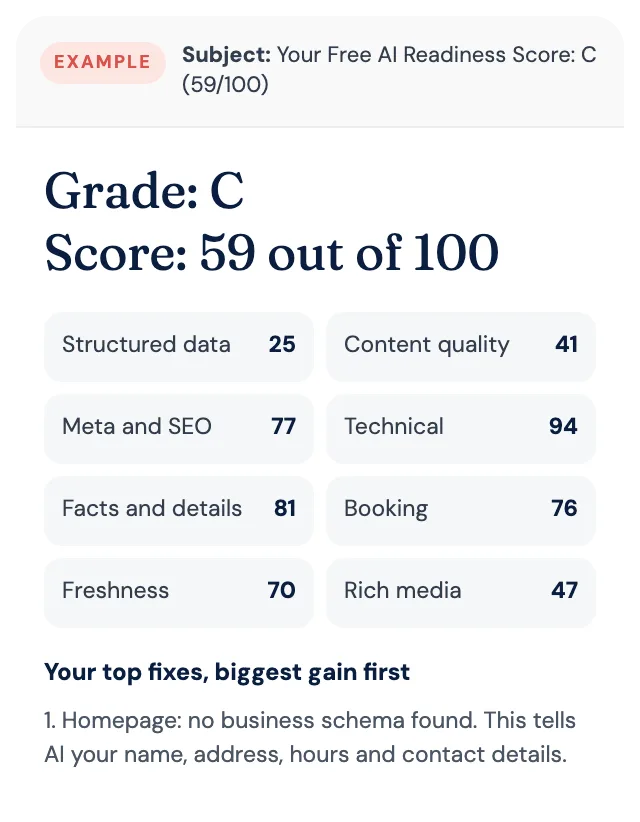
Free AI Readiness Score
How well does AI read your website?
Get your grade, a score out of 100 and your top fixes, by email. Free for tourism operators. No login and nothing to install.