
How do you complete the hotel facilities section on your Google Business Profile? Sign in on a computer, select Edit profile, then Hotel Details. Work through every amenity, and answer each one from fact: yes for what you have, no for what you don’t. Then check your website says the same thing.
Google fills in much of this section itself. Your job is to correct it and complete it.
- Why do hotel amenities matter on your Google Business Profile?
- Where to find the hotel amenities section
- Tick only what’s true
- Check what Google filled in for you
- Make your website say the same thing
- A worked example: a country motel
Why do hotel amenities matter on your Google Business Profile?
Amenities are the filters guests and AI tools search with. Pet friendly, free parking, a pool, step-free access. If your profile doesn’t say it, you don’t show up for it.
Google says it plainly on its attributes page. If you add certain attributes, “your business might show up in searches for places with those attributes.”
Our view goes further. Google’s AI filters on these fields directly. In our guide to accessibility content, we explain why: a traveller asking for step-free rooms is shown you only if you’ve ticked that box.
Specific beats general. We’ve seen it in coaching. A profile that lists a fireplace shows up when someone searches for accommodation with a fireplace in your region. A generic profile misses that guest.
There’s a second reason to get this right for accommodation. Hotels get no description field to edit. When we checked 21 accommodation listings, every one with a Google hotel star class showed Google’s own description or none. Your amenities are one of the few places on the profile where your facts go in directly.
Where to find the hotel amenities section
Google’s help page lists five steps. You need a claimed and verified profile, and a computer. Google says hotel information is “only available on a computer.”
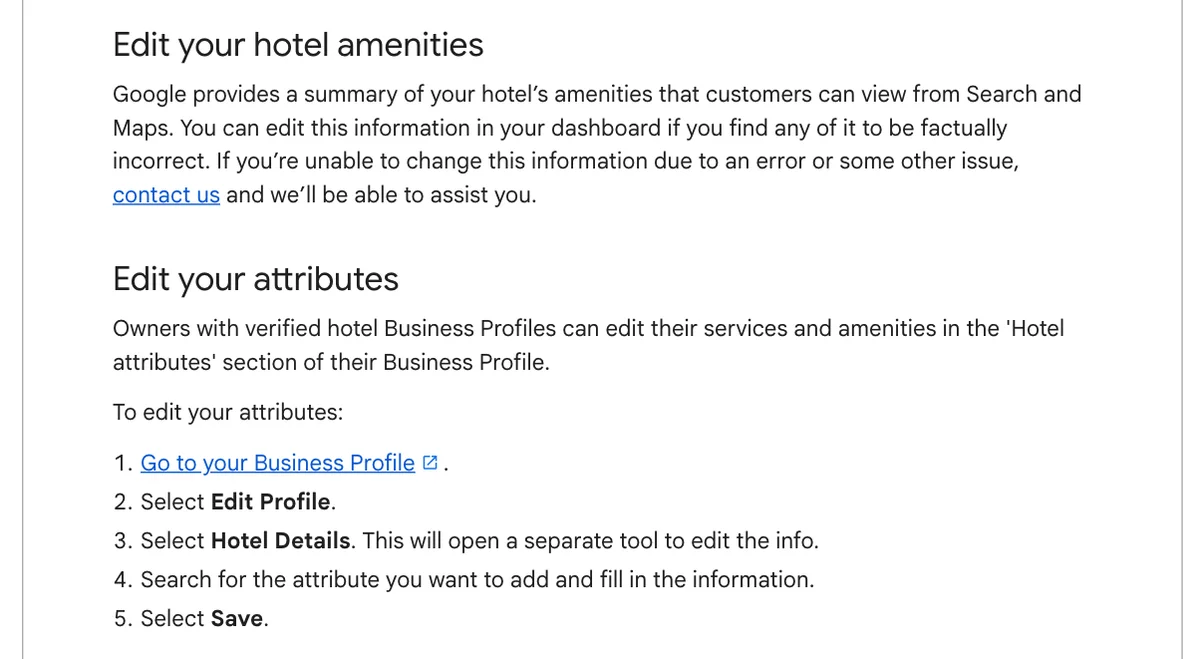
- Go to your Business Profile, signed in to the Google Account that manages it.
- Select Edit profile.
- Select Hotel Details. Google says this opens a separate tool to edit the info.
- Search for the amenity you want to add and fill in the information.
- Select Save.
Expect a long list. Google’s hotel data for developers sorts amenities into groups. They include pools, wellness, parking, pets, accessibility, families, connectivity (internet), food and drink, policies, housekeeping, sustainability and the rooms themselves. Work through one group at a time.
Some rules from Google’s hotel pages:
- No verification, no full edit. Google says your profile “must be claimed and verified” to edit all amenities from your dashboard. Stuck on verification? Our guide to why a business isn’t showing on Google Maps covers the checks.
- Bulk spreadsheet uploads skip this section. Google lists it as a known issue. Use the dashboard, or the API if you manage many properties.
- Hours aren’t yours to set. Google treats hotels as open 24 hours to guests, so hotels don’t edit opening hours. Check-in and check-out times are the exception.
- Your restaurant or day spa gets its own profile if people visit it without staying with you.
Don’t see Hotel Details on a computer? Google’s hotel pages are written for hotel profiles. On other profiles, Google’s attributes steps apply: Edit profile, then More. Select Edit next to a category such as Amenities, answer Yes or No for each attribute, and Save.
Tick only what’s true
Answer every amenity that applies, and answer No where it doesn’t. Don’t tick a box you hope to offer next season.
A wrong tick costs you trust. The guest who booked for the pool arrives to find none.
Google’s hotel help page says to edit the amenity summary “if you find any of it to be factually incorrect.” Google’s 2026 hotels playbook says to “highlight all relevant amenities.” We’d add one word: relevant and true.
Use Google’s definitions, not your own. Take the wheelchair-accessible entrance. Google means an entrance one metre wide with no steps or stairs. Where there are steps, Google says there should be a permanent or movable ramp. A heritage cottage with two steps at the front door and no ramp doesn’t meet that.
Our accessibility guide makes the same point from the guest’s side. List honestly what is accessible and what isn’t. Guests plan around it.
Three to check closely:
- Pets. Yes means pets are welcome. If only two rooms take dogs, say so on your website, and keep the profile answer honest.
- Parking. Free, paid, on street or on site. Pick the one that’s true on a busy Saturday.
- Internet. Wi-Fi in the rooms or only at reception. Guests notice the difference.
Check what Google filled in for you
Google fills in much of this section itself. Its hotels playbook says Google “surfaces most amenities”. Its help page says: “Google provides a summary of your hotel’s amenities that customers can view from Search and Maps.” Your first job is to check that summary, not add to it.
Google takes information from “user reports and licensed content”, as well as from you. It also takes some attributes from what guests who visit tell it. In coaching, we’ve seen Google fill in amenities without telling the owner. Water skiing and children’s features that didn’t apply, for example. Remove anything that doesn’t apply.
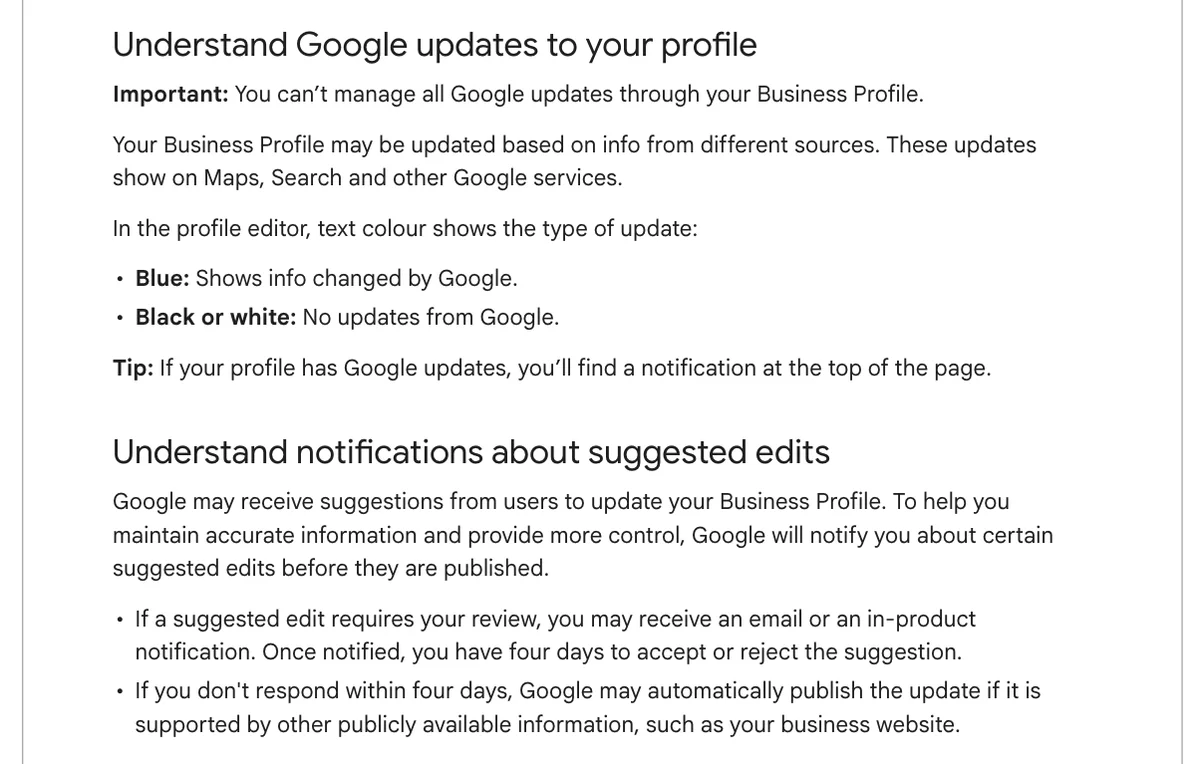
Look for blue text in the profile editor. Google uses blue for “info changed by Google”. A notification at the top of the page tells you when your profile has Google updates. Then read every answer in Hotel Details, not only the blue ones.
Watch your email too. When someone suggests an edit, Google sometimes asks you to review it first. You get four days to accept or reject it. Miss that window, and Google says it “may automatically publish the update if it is supported by other publicly available information, such as your business website.” Google also applies some suggested edits without asking you first, where its policies require it.
That last line is why your website matters so much here.
Check-in and check-out times work the same way. Google gathers them from other sources too, and lets you choose whether to accept those updates automatically. If your times are fixed, set them yourself and review anything Google suggests.
Make your website say the same thing
Every amenity you tick on Google needs to match your website, your booking engine and your other listings. Google names your website as one source that backs up suggested edits. AI tools cross-check your facts across sites too.
We put it bluntly in our 15 AI search FAQs for DMOs: inconsistency is the number one reason AI tools skip over a business. If the AI isn’t sure which information is correct, it won’t recommend you.
Liz made the same point to holiday park operators at the BIG4 conference. Your facts should agree across your own website, your Google Business Profile and your Australian Tourism Data Warehouse (ATDW) listing. Our BIG4 takeaways post covers it. The wording changes between channels. The facts don’t.
The profile holds the yes or no. Your website holds the detail. “Pet friendly” leaves a dog owner guessing. Your website says which rooms take pets, how many, any fee and where dogs aren’t allowed.
Here’s a simple way to keep them matched:
- List every amenity you ticked on Google.
- Find the page on your website that mentions each one. Add it where it’s missing.
- Compare the same facts on your booking engine and your online travel agent listings.
- Fix the odd one out, wherever it sits.
Do the website first when you add or drop an amenity. Then Google has something to check your profile change against.
A worked example: a country motel
Here’s a hypothetical example. A 12-room country motel opens the Hotel Details tool for the first time.
Google’s summary already shows a pool and “pet friendly”. The motel has no pool. It takes small dogs in two ground-floor rooms, for a fee.
The owner works through the list:
- Pool: answers No.
- Pets: answers Yes. The motel’s pet page lists the two rooms, the size limit and the fee.
- Parking: answers free on-site parking, which matches the website.
- Accessibility: answers No to wheelchair-accessible entrance, because every room has a step. The website’s accessibility page says so, with a photo of the step.
- Internet: answers Yes to free Wi-Fi, which reaches every room.
Then the owner checks the booking engine and the online travel agent listings. One still says “pool”. The owner fixes it the same day.
The profile now answers a dog owner’s question. And nobody arrives expecting a pool.
Keep logging in after that. In Episode 21 of Untangling Tourism Tech, Fabienne explains that logging in to your Google Business Profile is itself a signal you’re active. Check this section whenever you renovate, add a facility or change a policy. Our Google Business Profile tech session recap covers the rest of the profile.
Frequently Asked Questions
Why don’t I see Hotel Details on my Google Business Profile?
Check three things. Google says hotel information is only available on a computer, so switch from your phone. Your profile needs to be claimed and verified. And Google’s hotel pages are written for hotel profiles: on other profiles, amenities sit under Edit profile, then More.
Google says my property is pet friendly, but it isn’t. How do I fix it?
Open Hotel Details on a computer, find the pets amenity and answer No, then Save. Google’s help page says you edit the amenity summary when any of it is factually incorrect. If the change won’t save or keeps coming back, Google’s hotel page points you to its support team.
How long do amenity changes take to show on Google?
Google reviews profile changes before they go live. Its general attributes help page says a review usually takes about 10 minutes, and sometimes up to 30 days. Google gives no separate time for Hotel Details. Check your profile on Google Search and Maps after a few days.
Should I fill in every hotel amenity on my Google Business Profile?
Answer every amenity that applies to you, and answer No where it doesn’t. A complete, honest profile gives Google and AI tools facts to match against a guest’s search. A box ticked in hope sends guests the wrong way and costs you a review.
Why is there no description or opening hours to edit for my hotel on Google?
Google doesn’t give hotels an editable description. It also treats hotels as open 24 hours to guests, so there are no opening hours to set. When we checked 21 accommodation listings, every one with a Google hotel star class showed Google’s own description or none. Put your description on your website instead. Our guide to Google Business Profile descriptions explains how.
Conclusion
The hotel amenities section is where your facts go straight onto Google, so make every answer true. Open Hotel Details on a computer this week, check every answer Google filled in and answer every amenity that applies. Then make your website say the same thing.
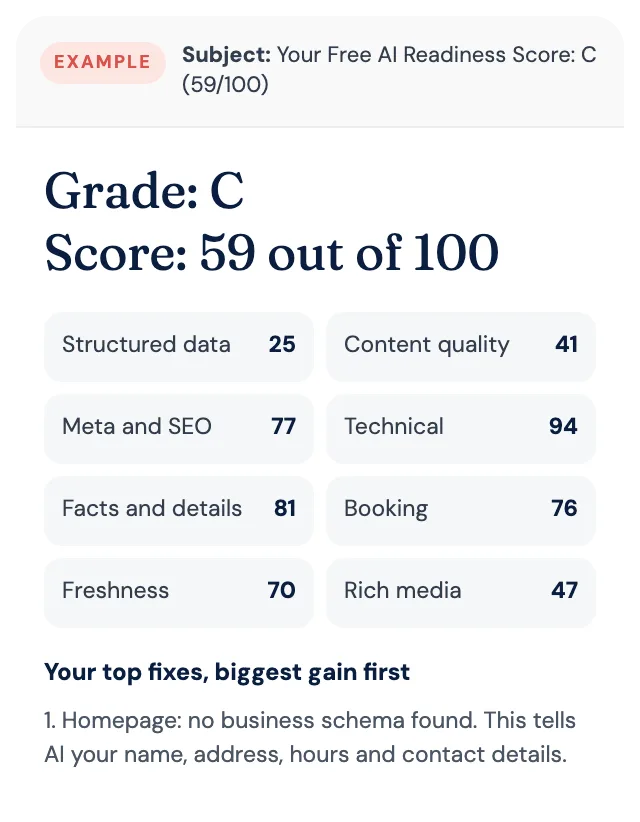
Free AI Readiness Score
How well does AI read your website?
Get your grade, a score out of 100 and your top fixes, by email. Free for tourism operators. No login and nothing to install.