For reading your documents, usually not. A connector lets ChatGPT or Claude in the browser search and read files in SharePoint, OneDrive, Google Drive or Dropbox, if your plan and your organisation allow it. The desktop app matters when the job happens in a program on your computer, such as a video editor or a booking system, or in a folder on your computer.
A member asked us this exact question this week. All of their work lives in their organisation’s SharePoint, opened in the browser. The same answer applies to OneDrive, Google Drive and Dropbox. We checked it against OpenAI, Anthropic, Microsoft, Google and Dropbox’s own help pages on 23 November 2026.
- Which jobs need the desktop app, and which work in the browser?
- What does the desktop app do that the browser doesn’t?
- What works the same in the browser?
- My files are all in SharePoint, OneDrive, Google Drive or Dropbox. Is there still an advantage?
- Does the desktop app work on cloud drive files as a folder?
- Going further: AI apps built for the work, such as IDEs
- What to set up before you switch on computer use
Which jobs need the desktop app, and which work in the browser?
Start from the job, not the app. Ask two questions. Where do the files live? And which program does the work happen in?
If the files are in the cloud and the job is reading or writing, the browser is enough. If the work happens inside a program installed on your computer, you need the desktop app.
OpenAI’s own rule of thumb points the same way: “If the target app exposes a dedicated plugin or MCP server, prefer that structured integration”. Computer use is for when the AI “needs to inspect or operate the app visually” (Computer Use). Connector first, computer use second. Computer use needs ChatGPT Work or Codex in a supported region, or Claude on Pro, Max or Ultra (Team and Enterprise in beta).
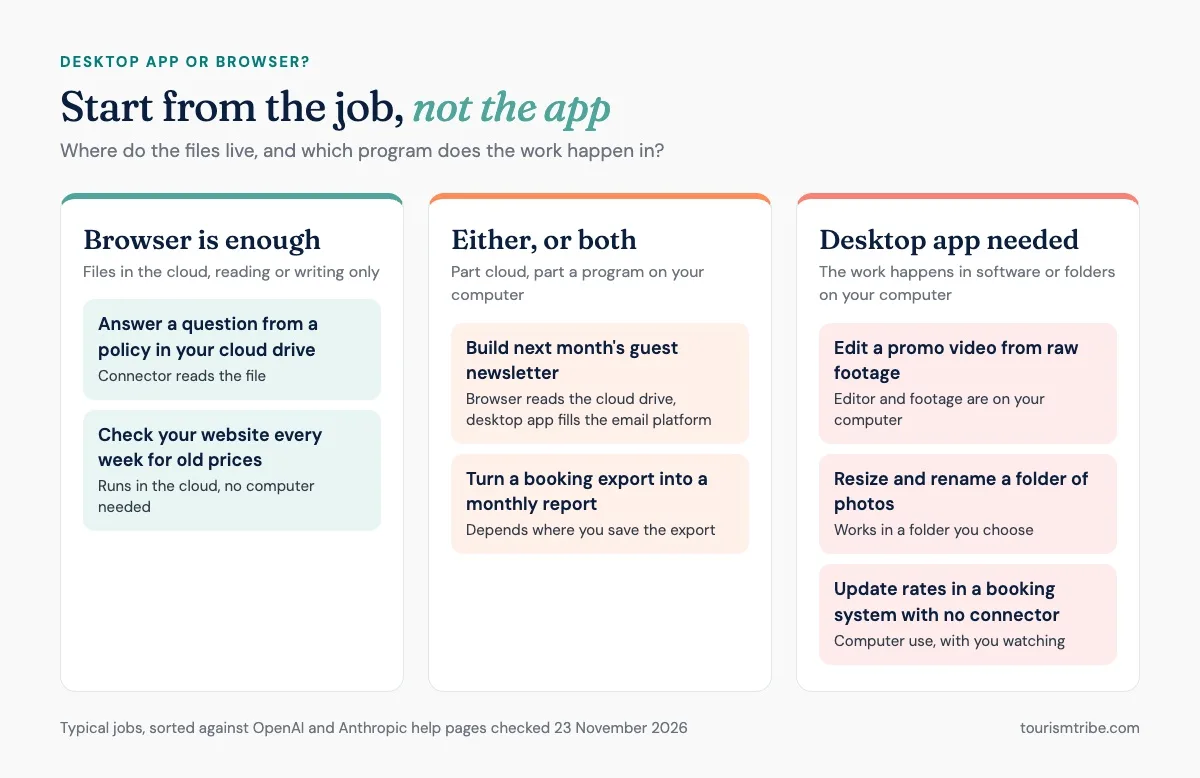
Seven typical jobs, sorted. These are examples, not client stories.
Answer a question from your policies in a cloud drive: browser
The job: “What does our cancellation policy say about severe weather?” The policy sits in SharePoint, OneDrive, Google Drive or Dropbox. The AI only needs to find the file and read it. Once the connector for that drive is approved, it does that in the browser.
Check your website every week for old prices: browser, in the cloud
The job: a weekly look over your rates pages for prices that should have changed. Nothing on your computer is involved. OpenAI suggests the Cloud option for tasks like “a scheduled website check”. It runs without your computer.
Edit a promo video from raw footage: desktop app
The job: cut last weekend’s footage into a 30-second reel with captions. This is heavy local work. The footage sits on your drive, and the editing software is installed and runs on your computer. A browser on its own reaches neither: the desktop app has to be installed and open.
The desktop app does. With computer use, the AI operates the editor’s screens: trimming clips, adding captions, starting the export. Check first whether your editing software has its own plugin or connector, because OpenAI says to prefer that.
Plan where it runs. On Windows, ChatGPT will “take over the foreground while the task runs”, so it moves your pointer and types. For Windows tasks that keep going while you step away, OpenAI suggests a second device or a virtual machine. On a Mac, OpenAI lists “running a scoped task in the background while you keep working elsewhere” as a use.
Resize and rename 200 photos for your website: desktop app
The job: photos from a shoot, each renamed for search and cut to your website’s size. The photos are on your computer, and the desktop app works in a folder you choose: Claude “reads and writes files in folders you’ve connected on your computer”.
Update rates in a booking system with no connector: desktop app
The job: next season’s rates entered into a booking system that ChatGPT and Claude have no connector for. Computer use operates the booking system’s screens the way you would. OpenAI lists “working with a data source that isn’t available as a plugin” as a reason to use it. Stay at the screen for this one: it touches prices and a login.
Build next month’s guest newsletter: both
The job: a holiday park’s monthly newsletter to past guests. The specials and event listings live in a cloud drive (SharePoint, OneDrive, Google Drive or Dropbox), and the email platform has no connector.
- In the browser: through the connector for that drive, the AI reads the specials and events documents and drafts the stories.
- In the desktop app: with computer use, the AI opens the email platform, copies last month’s campaign and drops in the new stories. It stops at the draft.
- The human decision: the marketing lead checks the facts and links, then sends it.
For a job that repeats, read how to set up ChatGPT scheduled tasks and how to use ChatGPT for Work.
Turn a booking system export into a monthly report: either
The job: last month’s bookings, exported as a spreadsheet, turned into a one-page summary for the owner. Where you save the export decides it. Save it to SharePoint, OneDrive, Google Drive or Dropbox and the browser reads it through the connector. Leave it in your Downloads folder and the desktop app reads it there (in Claude, connect that folder first).
What does the desktop app do that the browser doesn’t?
The desktop app reaches your computer. The browser version stays in the cloud.
OpenAI’s help centre says it plainly: “Work on web and mobile cannot directly access files on your computer” (ChatGPT Work and Codex). In the desktop app, “Work in the desktop app can also use local files and desktop apps with your permission.”
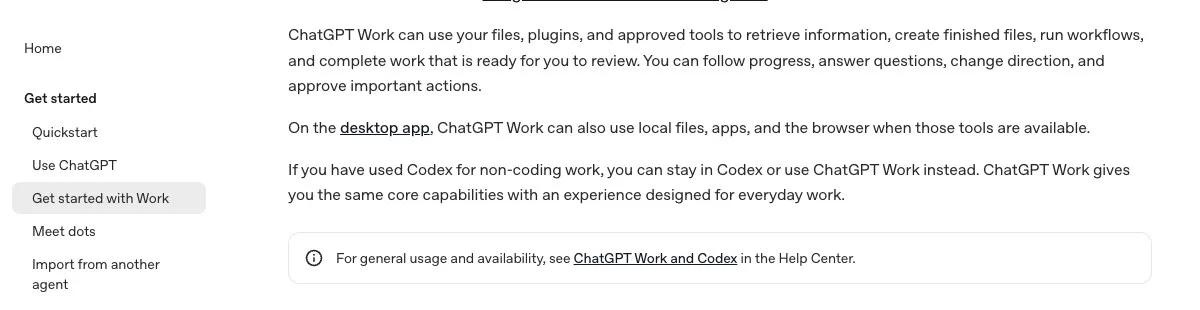
OpenAI describes Work as “an agent designed for longer, multi-step work and finished deliverables.” Computer Use is the bigger difference. With it, ChatGPT “can see and operate graphical user interfaces on macOS or Windows” (Computer Use). It clicks, types and moves between your programs the way you do. OpenAI lists it in the desktop app with Work and Codex, in supported regions.
The download costs nothing. OpenAI’s July 2026 launch post says the desktop app has Chat, Work and Codex “available to users on every plan, including Free” (OpenAI). OpenAI’s help centre adds that Work in the desktop app depends on what your plan and workspace include. We set up the desktop app step by step in our GPT-6 Astra and ChatGPT desktop app guide.
Claude follows the same split. Cowork is where Claude takes on whole tasks: Anthropic says it brings “agentic capabilities to knowledge work beyond coding”. Its help centre: “Desktop is the full Cowork experience, where Claude can also use your local files and browser” (Use Claude Cowork on web, desktop, and mobile). These need the desktop app:
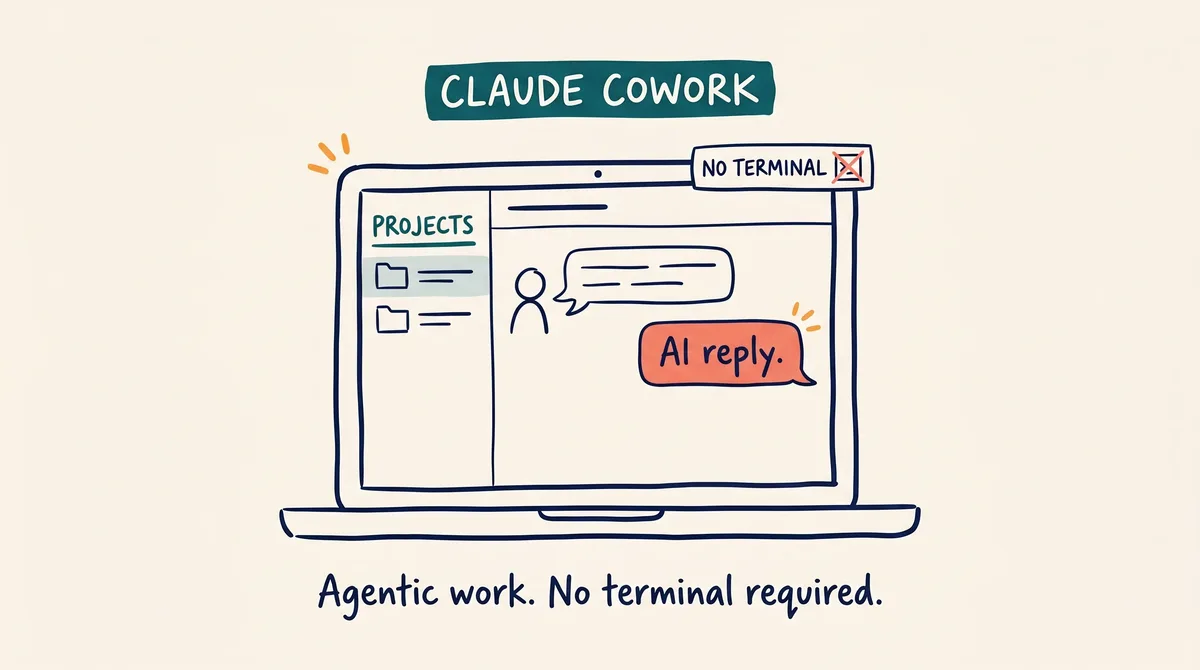
- reading and writing files in folders you have connected on your computer
- driving a browser as part of a task (“still needs the desktop app open”)
- computer use, where Claude clicks, types and moves around your screen
- local connectors and plugins, the ones that run Model Context Protocol (MCP) servers on your own machine
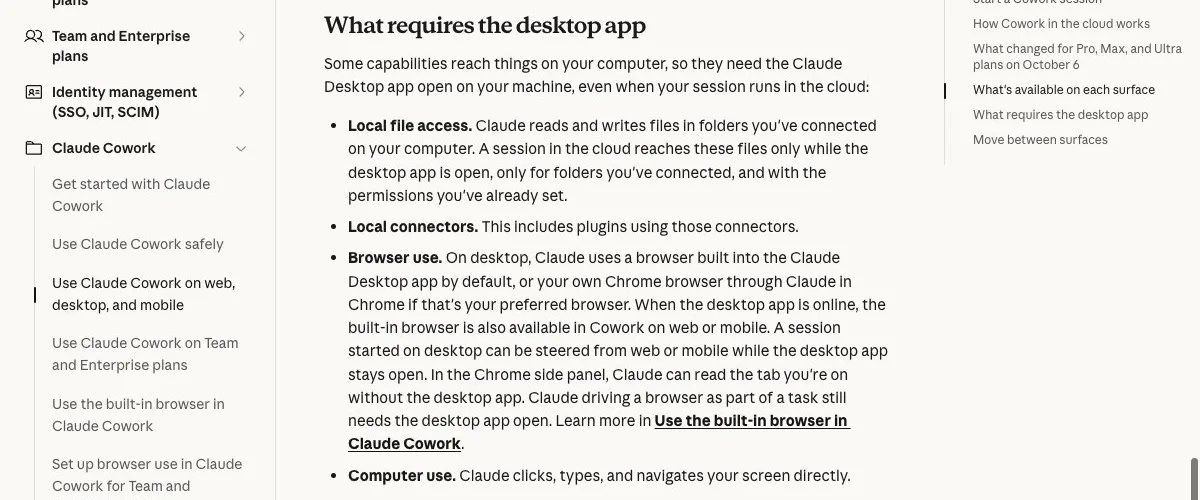
Cowork needs a paid Claude plan. Computer use is on Pro, Max and Ultra. On Team and Enterprise it is in beta, and an organisation owner turns it on (Let Claude use your computer in Cowork).
On a Mac, Claude adds quick entry, on every plan: double-tap the Option key, then drag across the screen to send a screenshot or click a window to attach it.
What works the same in the browser?
Ordinary chat, your conversation history and your cloud connectors work the same in both.
Your work follows your account. Anthropic: “Your sessions and files live with your Claude account and go where you go, on any device.” Both agent modes also run in the cloud from the browser: ChatGPT Work on eligible paid plans, Claude Cowork on Pro, Max and Ultra (Team in beta, Enterprise when an owner switches it on).
Cloud work keeps going when you shut the laptop. Anthropic: “Close your laptop and Claude keeps going.” OpenAI suggests the Cloud option for “tasks that can run without” your computer (Get started with ChatGPT Work).
Connectors to cloud drives work in the browser too. You connect Claude to Microsoft 365 on claude.ai, and the connection carries over to the iPhone and Android apps. OpenAI: “Plugins connect ChatGPT Work to tools your team uses, like Slack, Google Drive, SharePoint, email, calendars,” and more. Dropbox has its own plugin for ChatGPT and connector for Claude.
My files are all in SharePoint, OneDrive, Google Drive or Dropbox. Is there still an advantage?
Yes, but not for reading your files. A connector already does that in the browser. The advantage is in everything around the files.
Start with the connector. ChatGPT’s SharePoint app searches SharePoint and work OneDrive content your Microsoft account already has access to. OpenAI: “Personal OneDrive accounts are not supported by the SharePoint app.” Where your organisation requires it, a Microsoft Entra administrator approves the permissions first.
Claude’s Microsoft 365 connector is on every Claude plan, Free included. A work account covers SharePoint, OneDrive, Outlook and Teams. Anthropic: “Before anyone in your organization can connect, an admin needs to set up Microsoft 365.” A Global Administrator in Microsoft Entra also gives a one-time consent.
Google Drive and Dropbox work the same way. ChatGPT’s Google Drive app works with files and folders your Google account already opens, and Claude’s Google Workspace connectors are “available for all users on Claude and Claude Desktop” (on Team and Enterprise, an owner switches them on first). Dropbox says its ChatGPT plugin is on all Dropbox plans and “You can only access files you already have permission to use.” Its Claude connector works in claude.ai and the Claude desktop app, carries over to Cowork, and must be allowed for your organisation.
The first call is to your IT person, not to a download page.
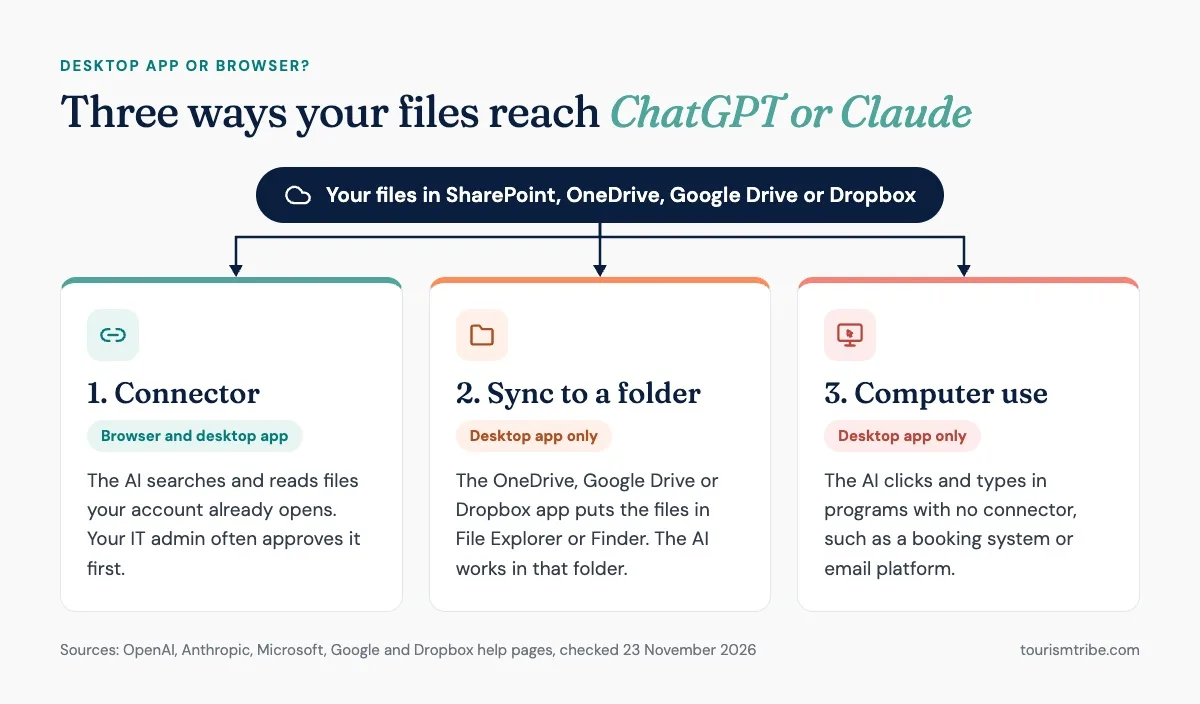
Once the connector works, the desktop app adds the jobs that a cloud drive alone does not cover:
- programs with no connector, such as a website editor, a booking system or an email platform, which computer use operates through the screen (OpenAI names “a data source that isn’t available as a plugin” as one use)
- heavy work in software installed on your computer, such as editing video
- files that are not in your cloud drive yet: an operator’s PDF, a downloaded report, a screenshot
- showing the AI your screen instead of describing it (Claude quick entry on a Mac)
- long jobs that start in your cloud drive and finish in another program
Fabienne gave our member three reasons: computer use, local files and multi-step workflows. Files in the cloud settle only the second.
Does the desktop app work on cloud drive files as a folder?
Yes, through each drive’s own sync app. Microsoft says (Sync SharePoint files and folders) that once you sync a library, “your SharePoint files appear in File Explorer under the name of your organization” on Windows, or in Finder on a Mac.
Microsoft offers the Sync button or a OneDrive shortcut, and recommends the shortcut “as the more versatile option when available.”
Google and Dropbox have the same idea. Google Drive for desktop lets you reach your Drive files “like any other drive on your computer”. Google: “Streaming a file uses almost no computer space, but mirroring downloads a full copy directly to your computer.” The Dropbox desktop app puts your Dropbox in Finder or File Explorer, where you right-click a file or folder and choose Make available offline (Dropbox).
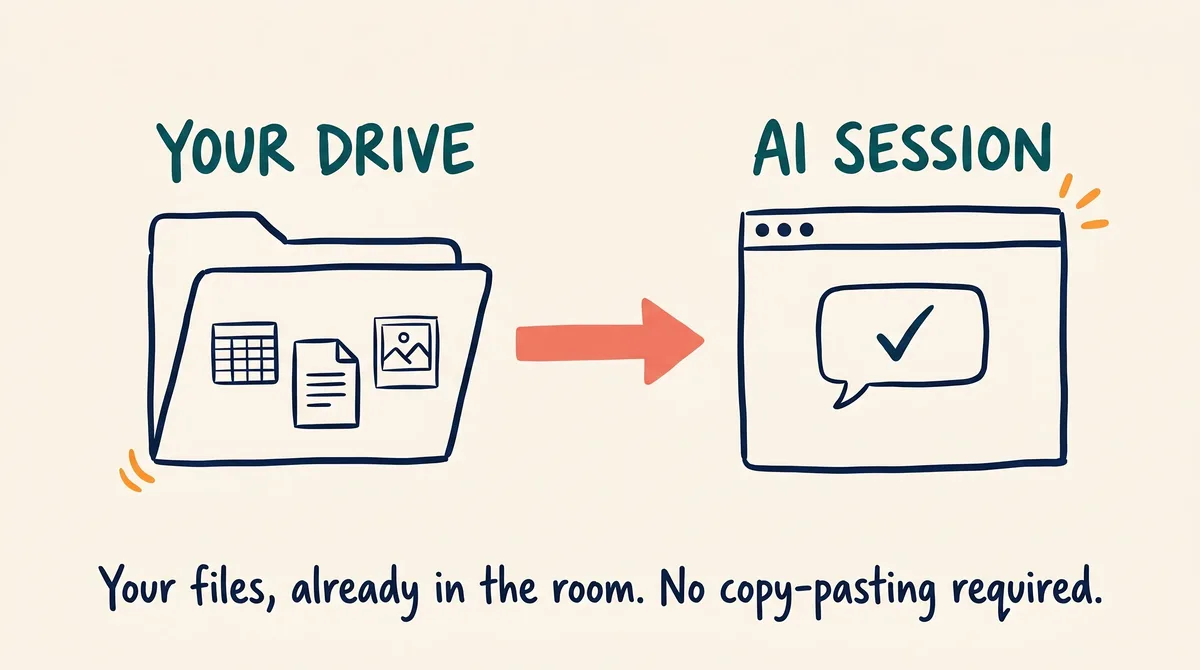
Our reading of these pages: once the folder is on your computer, you point the ChatGPT or Claude desktop app at it like any other folder. Anything the AI changes there syncs back to the cloud drive for everyone it is shared with.
Our advice: start with one small folder for one job, not the whole intranet. On a Mac with macOS 12.1 or later, Microsoft says Files On-Demand is on by default and stays on. You still mark files to stay available offline, in OneDrive and Dropbox alike. Do that for the folder you give the AI. If your computer is managed by your organisation, check with IT before you sync or install anything.
How to organise those folders, and the AGENTS.md file that tells the AI how to work in them, is in how to set up an AI operating system for your tourism business.
Going further: AI apps built for the work, such as IDEs
The ChatGPT and Claude desktop apps are the first step. If you use AI every day, the next step is an app built for working on files with AI, and the main kind is an IDE.
An integrated development environment (IDE) is an app for working on a folder of files. It puts your file list, an editor, a terminal and an AI chat panel in one window. Developers built IDEs for code. Our reading: they work on any folder, such as your website copy, your AGENTS.md instructions or a season of social posts. Visual Studio Code (VS Code) and Cursor are two examples.
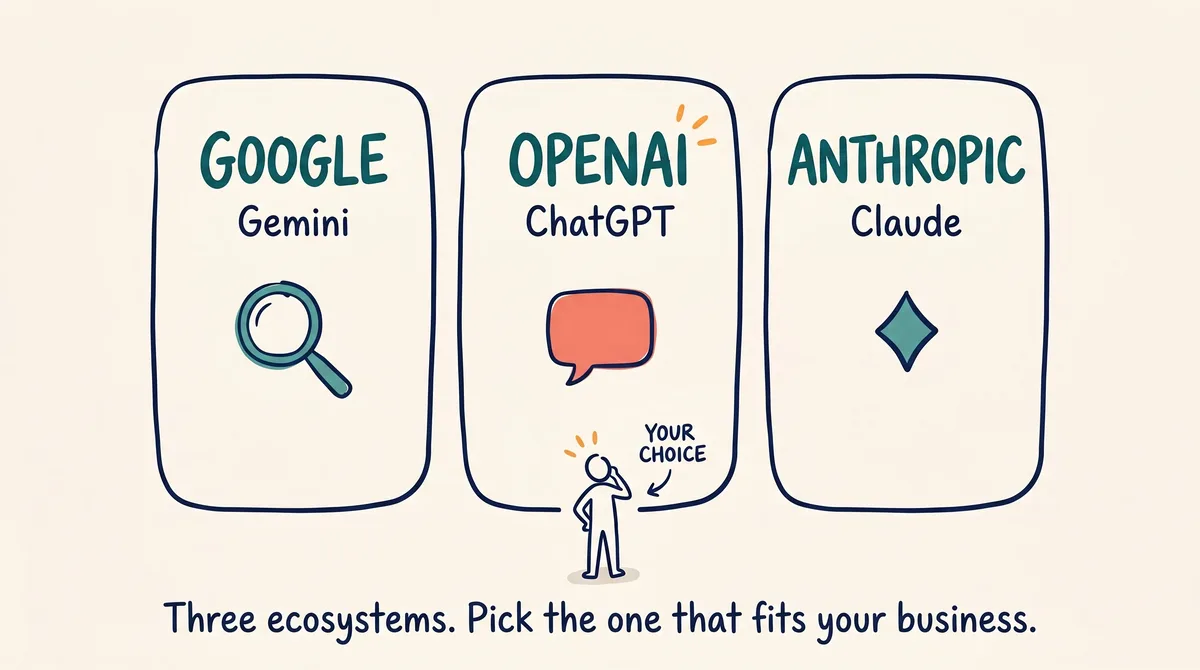
The big difference is that you choose the model, so, depending on your plan, you are not tied to one AI company. This is what “model agnostic” means.
- VS Code: “Use the language model picker in the chat input field to change the model for chat conversations and code editing” (VS Code). You add other providers with your own key from that company: “Azure, Anthropic, Gemini, OpenAI, and others”. On Copilot Business and Enterprise, an administrator can switch that off.
- GitHub Copilot: its model list covers OpenAI, Anthropic, Google, Microsoft, Moonshot AI and xAI. “The models available to you depend on your Copilot plan” (GitHub).
- Cursor: “Cursor supports frontier models from OpenAI, Anthropic, Google, SpaceXSI, and more.” Check the plan first: “Plus and Free don’t include third-party models” (Cursor).
Our reading: your folders, instructions and workflows stay where they are when you switch models. When a better model comes out, you change a menu setting, not your whole set-up. An IDE opens any folder on your computer, a synced SharePoint, OneDrive, Google Drive or Dropbox folder included.
Our advice: start with the ChatGPT or Claude desktop app. Move to an IDE once you work in folders every day and want the best model for each job.
What to set up before you switch on computer use
Treat computer use like handing a new staff member your mouse. Anthropic is direct about it: “Computer use has no sandbox between Claude and your applications” (Let Claude use your computer in Cowork).
Both companies build in checks:
- Claude asks permission before it uses each application, and you block apps it should never touch.
- ChatGPT asks you to approve each app it uses, and you stop the task or take over the computer at any time.
Their advice lines up. Anthropic says to keep computer use away from banking, healthcare and government apps. OpenAI says to keep tasks narrow, close sensitive apps, and stay present for anything involving payments, passwords or account settings (Computer Use).
Two more steps from our own sessions. Move every password into a password manager first, out of spreadsheets and desktop notes. And read how prompt injection works, because an AI that reads web pages and emails also reads the instructions hidden in them.
Frequently Asked Questions
Is the ChatGPT desktop app free?
Yes, the app is on every plan. OpenAI’s 9 July 2026 announcement lists Chat, Work and Codex in the desktop app on every plan, including Free. What Work does in the app still depends on your plan and workspace. In a managed workspace, your administrator decides whether Computer Use is switched on.
Which Claude plan do I need for computer use?
Pro, Max or Ultra. On Team and Enterprise plans, computer use is in beta and an organisation owner turns it on. Cowork itself needs a paid plan.
What is an IDE, and do I need one?
An integrated development environment (IDE) is an app for working on a folder of files, with an AI chat panel built in. VS Code and Cursor are two examples. You do not need one to start. It pays off once you work in folders every day and want to switch between models from OpenAI, Anthropic and Google.
Do I need the desktop app to edit video with AI?
Yes, when the footage and the editing software are on your computer. A browser on its own reaches neither. With computer use, the desktop app operates the editor’s screens, and on Windows it takes over your pointer and keyboard while it works.
Does the desktop app keep working when my computer is off?
Cloud tasks keep running. Local work does not. Claude reaches your folders only while the desktop app is open, and computer use needs the computer awake. OpenAI suggests the Cloud option for tasks that run without your computer.
Do I need IT approval to connect SharePoint, OneDrive, Google Drive or Dropbox?
For a work account, often yes. For SharePoint and OneDrive, ChatGPT needs a Microsoft Entra administrator to approve its permissions where your organisation requires it, and Claude needs an admin to set up Microsoft 365 first. A Google Workspace admin sometimes marks Claude as a trusted app before Google Drive connects. Dropbox’s Claude connector must be allowed for your organisation.
Conclusion
Files in the cloud do not make the desktop app pointless. They move its value to the jobs that happen in programs on your computer, from video editing to booking systems. Ask IT to approve the connector for your cloud drive this week. Then install the desktop app and try one small job with computer use while you watch.
- C
- O
- M
- P
- A
- S
- S
Convince the board · Out of heads · Make it queryable · Prime operators · Activate AI · Safeguard · Show the value
COMPASS: AI Playbook for DMOs
Turn this into your region’s AI strategy
COMPASS is the seven-move AI playbook for DMOs and tourism organisations.