

To check your SEO changes are working, write down your Google Search Console numbers before you change anything. Mark the date of the change. Wait a few weeks, then compare the same length of time before and after. Watch the number that matches the fix: click-through rate for new titles and descriptions, the Enhancements report for schema, and the page’s index status for indexing fixes.
Google’s own guide says to wait “a few weeks” before you judge a change. Searching your own name the next morning tells you little. The routine below needs no SEO background.
- Before you change anything, write down today’s numbers
- Which number to watch for each fix
- How long to wait before you judge it
- What the numbers tell you
- Check the AI answers as well
Before you change anything, write down today’s numbers
A before-and-after test needs a “before”. Open Google Search Console before you touch the page and record where it stands.
Search Console is Google’s free tool that shows how your site performs in Google Search. It isn’t active by default: someone has to set it up and connect it. If nobody set it up for your site, do that first. Our course videos show the steps, and Google’s help pages cover verification.
The Performance report shows four numbers. Google defines them like this:
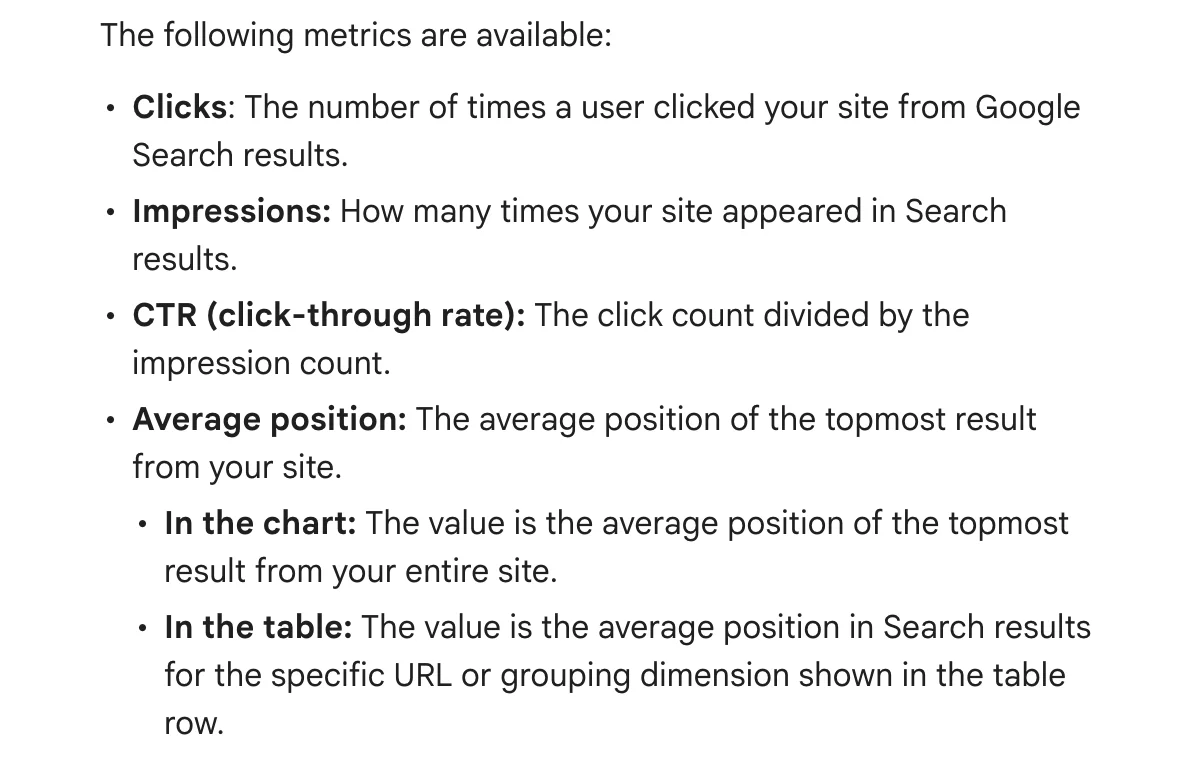
- Clicks: how many times someone clicked through to your site from Google Search.
- Impressions: how many times your site appeared in Search results.
- CTR (click-through rate): clicks divided by impressions.
- Average position: where your highest result sat, on average.
Record them for the page you plan to change, not the whole site. In our training we teach the average position of a single page because it tells you more than the site average.
Here’s how:
- Open the Performance report in Search Console.
- Click + New at the top of the report and add a page filter with the URL of the page you’ll change.
- Write down clicks, impressions, CTR and average position for the four weeks before your change.
- Click the Queries tab and note the top searches that show this page.
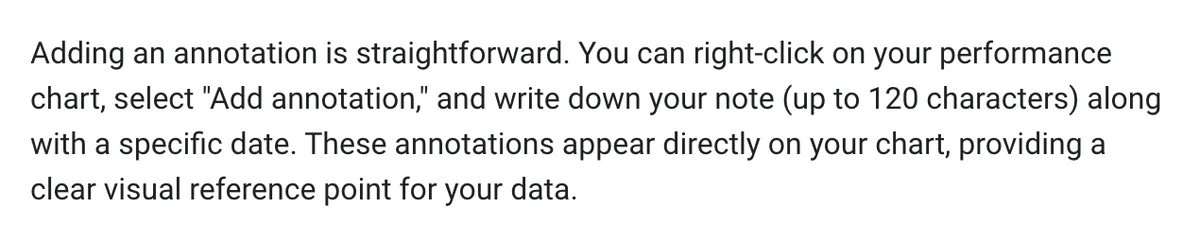
Then mark the change on the chart. Google added custom annotations in November 2025. Right-click the performance chart, select “Add annotation” and type a short note with the date. Notes take up to 120 characters, and everyone with access to your property sees them, so leave out personal details.
Hypothetical example: a winery tour operator rewrites the title and description on its private tours page. Before saving, the owner filters the Performance report to that page and copies the four numbers into a note on their phone. After saving, they add the annotation “New title and description, private tours page”. Four weeks later, they compare.
Which number to watch for each fix
Each kind of SEO fix moves a different number. Pick the right one before you start, or you’ll read noise as a result.
New page titles and meta descriptions. Watch CTR and clicks for that page. A title and description change what people see in the search result, so the first sign of success is more people clicking from the same impressions. In our coaching sessions we check title and description length with the free Detailed SEO Extension for Chrome. It shows a red light when either one is too long and gets cut off.
Schema markup. Check it twice. On the day, paste the page URL into Google’s free Rich Results Test. A good result lists the items Google detected, with no errors. A few weeks later, open Search Console and look under Enhancements for the structured data Google found across your site. Our guide to setting up schema in Rank Math walks through both checks.
Schema doesn’t directly change your ranking. As our schema guide for tourism puts it: more people click, same ranking. Watch CTR, not position.
In coaching, we look for a rising count of items in the Enhancements report from a set date. That date tells you Google picked up the fix. While you’re there, check for pages tagged with the wrong type, such as an about page marked as a product.
Indexing fixes. Use the URL Inspection tool in Search Console. Paste in the page address and it tells you whether the page is in Google’s index. Google notes that this result “is not a live test”. It shows the version Google last indexed. Click to test the live URL and see whether Google thinks your fix worked. Then request indexing. Google sets a daily limit on inspection requests, so start with your most important pages.
A second check takes seconds. Search site:yourdomain.com in Google, using your own domain. If Google lists pages from your site, you’re indexed. Our post on why ChatGPT doesn’t know your business covers sitemaps and the other indexing checks.
How long to wait before you judge it
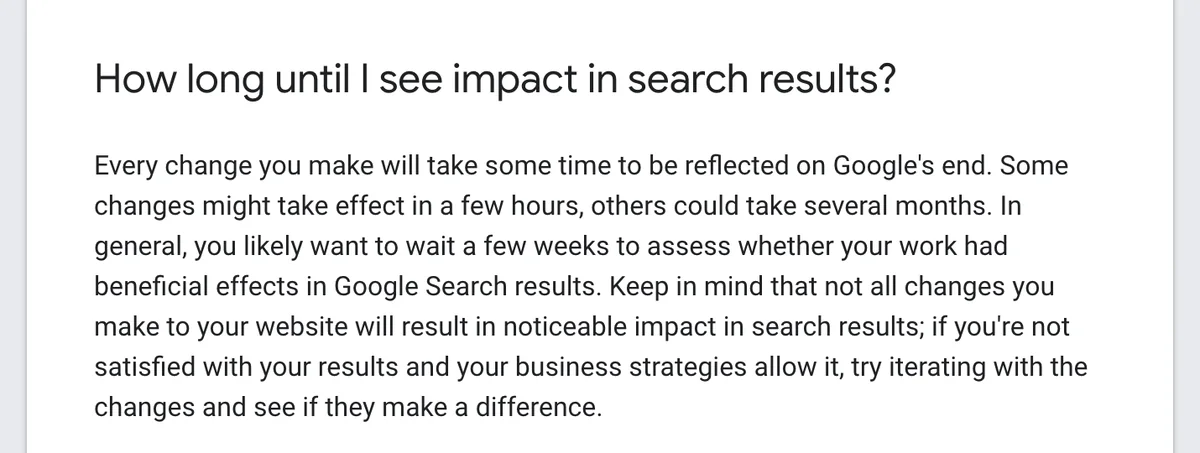
Give it a few weeks. Google’s SEO Starter Guide says it plainly: “Some changes might take effect in a few hours, others could take several months. In general, you likely want to wait a few weeks to assess whether your work had beneficial effects in Google Search results.”
Three rules while you wait:
- Compare like with like. In the Performance report, click the Date filter, then Compare. Set the same number of days before and after the change. A week after a long weekend against a quiet week tells you nothing.
- Use the Weekly view. Google says the Weekly and Monthly views smooth out daily ups and downs, such as weekends or holidays. Tourism traffic swings with school holidays, so weekly lines are easier to read.
- Ignore the last few days. Google marks its newest data as preliminary, with a dotted line on the chart. Google says it might change in the next few hours.
Don’t judge it by searching your own business on your phone. Google says your results depend on “the time, place, device, and recent history of the person searching.” If you do search, use a private or incognito window, as we show in our course videos. Search Console gives you the full picture.
Google also says some changes produce no noticeable result at all. That’s a result too. Try a different change on the same page and test again.
What the numbers tell you
Read the four numbers together. One number on its own misleads.
This is how we read them in coaching sessions:
- Lots of impressions, few clicks, position 3 to 8. Google shows the page, and people skip it. Look at the title and description first.
- Lots of impressions, few clicks, position 15 to 30. The page almost ranks. Improve the content on the page itself.
- First place for your business name, low CTR. Your title doesn’t describe what you offer, or the description gets cut off.
- Clicks only on your business name. Sort the Queries tab by clicks. If no search other than your name brings visitors, people who don’t know you yet aren’t finding the page.
Then cross-check with Google Analytics. Open the landing page report and confirm the page you changed brings visits, not only impressions. Our Google Analytics course teaches you to read your reports.
Back to the hypothetical winery. Four weeks on, impressions for the private tours page sit about where they were, and CTR has risen. The rewrite worked: same visibility, more clicks. If CTR had stayed flat, the next test would be a new description, with one change at a time so the owner knows which one made the difference.
Check the AI answers as well
Google Search now includes AI Overviews and AI Mode, and Search Console reports on them. Google added a separate generative AI view in June 2026. It shows how often pages from your site appeared in AI features, by page, country and device. Google says it reached all websites worldwide on 31 August 2026. It counts impressions only. It shows no clicks and no queries.
Use it as a before-and-after number too. If a page you rewrote starts to appear in AI features, that’s a result worth knowing.
Two more checks fill the gap:
- Google Analytics. GA4 has an “AI assistant” category in its traffic reports. Our tech session on tracking AI traffic explains that it counts only the people who click through. Most AI answers are no-click: the traveller gets the answer and never visits.
- Ask the AI tools. Ask ChatGPT, Gemini and Perplexity the questions your guests ask, before and after the change. Note whether you appear and which source gets cited.
AI tools that fetch your pages to build an answer never show up in Google Analytics. Our post on why DMO traffic is down and Google Analytics misses it explains why, and why your server logs show the real volume.
Frequently Asked Questions
How long does it take to see SEO changes in Google?
Google says some changes take effect in a few hours and others take several months. Its SEO Starter Guide recommends waiting a few weeks before you assess whether a change worked. Mark the date in Search Console and compare the same number of days before and after.
How do I compare before and after in Google Search Console?
Open the Performance report, click the Date filter, then click Compare. Choose the same length of time before and after your change. Add a page filter with + New to see only the page you changed.
Why don’t I see my changes when I search my business on Google?
Your own search isn’t a fair test. Google says results depend on the time, place, device and recent history of the person searching. Use Search Console’s Performance report, or check the page with the URL Inspection tool.
How do I know if my schema markup is working?
Paste the live page URL into Google’s free Rich Results Test the day you make the change. A good result lists the items Google detected, with no errors. After a few weeks, check the Enhancements reports in Google Search Console, and watch the page’s click-through rate. Our Rank Math schema guide shows both checks.
My impressions went up but my clicks didn’t. Is that bad?
It means Google shows your page and people skip it. If the page sits in positions 3 to 8, look at the title and meta description first. If it sits around positions 15 to 30, improve the content on the page itself.
Does Google Search Console show my AI Overview results?
Yes, in part. Search Console’s generative AI report shows how often your pages appeared in AI Overviews and AI Mode, by page, country and device. It doesn’t show clicks or the questions people asked.
Conclusion
The test fits on one page of notes. Record the four numbers for the page, make one change, mark the date, wait a few weeks and compare. Start with the page that earns you the most bookings. Want a hand reading the results? In our one on one coaching sessions, your coach shares screens and works through SEO with you.
Free AI Readiness Score
How well does AI read your website?
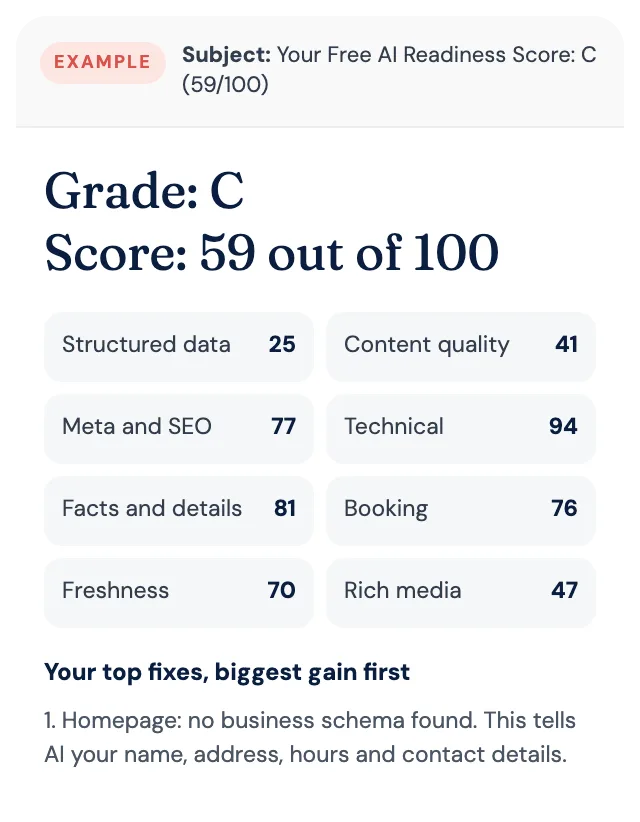
Get your grade, a score out of 100 and your top fixes, by email. Free for tourism operators. No login and nothing to install.