

To add schema to a Squarespace tourism website, first check you are on a Core, Plus or Advanced plan. Then have ChatGPT write the code from your own business facts. Paste one block into the site-wide header for your business, and one into each tour page. Test every page in Google’s Rich Results Test before you move on.
That is the short version. Below are the steps, the prompt we give operators, and the traps we see on Squarespace sites. If your site runs on WordPress, read our Rank Math schema guide instead.
Don’t know what schema even is? Check out our guide to schema markup for tourism to understand why your website needs it.
- What Squarespace adds by itself, and what it leaves out
- Check your plan before you start
- Pick the schema type for each page
- Have ChatGPT write the code
- Paste the code into Squarespace
- Test it and keep it current
What Squarespace adds by itself, and what it leaves out
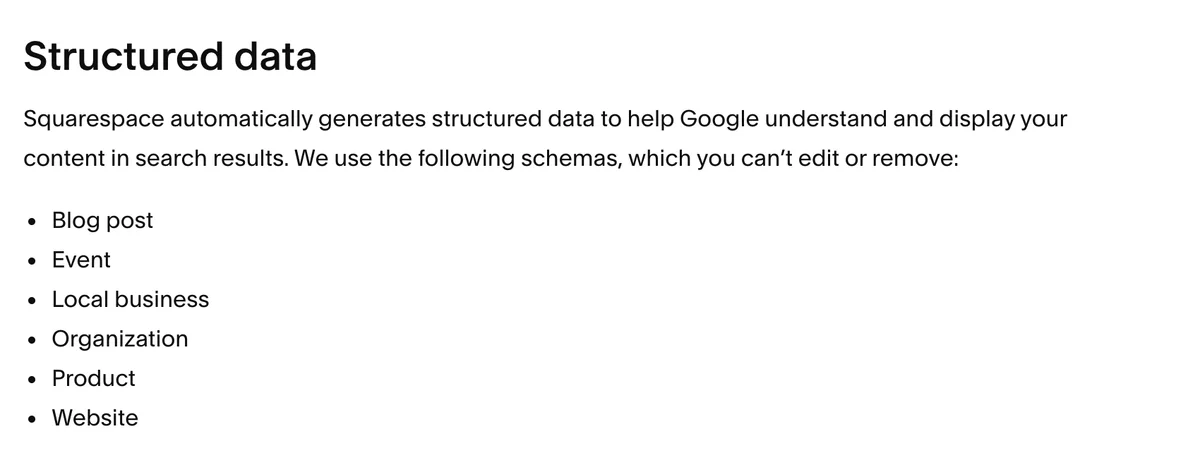
Squarespace already puts some schema on your site. Its help centre lists six types it generates for you: blog post, event, local business, organization, product and website. They are locked. You have no way to edit or remove them.
The trouble is how thin they are. We read the code on Squarespace’s own Bedford demo site, a template filled with placeholder details. Its local business block holds an image and an address as a plain text string. The name was empty. There were no opening hours, no map coordinates and no tourism type.
Google and AI tools see a generic business at an address. They do not see a whale watching tour, a glamping site or a winery.
Two more gaps matter for tourism:
- Booking widgets hide your tours. Squarespace structures product details for items in its own shop. Many operators sell through FareHarbor, Rezdy, Bokun or Checkfront instead. When the widget loads in a frame, Google does not read the content inside it, as our schema guide for tourism explains.
- FAQs get no schema. FAQ is not on Squarespace’s list.
Before you add anything, check Settings > Selling > Business Information holds your current phone, email, location and hours. Squarespace does not say whether this panel feeds its built-in schema, so treat it as housekeeping. Then open your homepage with the free SEO Pro Extension by Marketing Syrup in Chrome. It shows the schema already on each page.
Check your plan before you start
Schema goes into your site as a small script. Squarespace only allows scripts on some plans.

Code injection is available on the Core, Plus and Advanced plans, and on some legacy plans. On the Basic plan, custom code is limited to HTML, Markdown and CSS. A schema script will not run there.
On Basic, your choices are to upgrade or to live with Squarespace’s default schema. Do not pay for an upgrade until you have read the rest of this guide.
Pick the schema type for each page
Schema works in two layers. One block describes your business and goes on every page. Separate blocks describe each tour or event on its own page.
Here is how we match types to pages. It follows our Rank Math guide, so the advice is the same on both platforms.
| Page | Schema type | Note |
|---|---|---|
| Whole site (business block) | The closest business type: TouristAttraction for a tour or attraction, LodgingBusiness or the closer Hotel, Motel, Campground or Resort for accommodation. LocalBusiness if nothing fits | Name, address, phone, hours and links to your social and review profiles |
| Tour page with a price on it | Product with an Offer | Product is what earns stars and prices in Google |
| Tour page with no published price | Service | No Offer. Never add a price that is not on the page |
| Multi-day itinerary | TouristTrip | Lists the stops and who runs the trip. Google shows no special result, but it reads it |
| Event page | Event | Start date, location and ticket price. Squarespace’s own Events pages already carry Event schema, so check before you add it |
| FAQ section | FAQPage | Only the questions and answers visible on that page |
Google’s rule covers every row: do not mark up content that is not visible to readers of the page. Prices, ratings and hours in your schema must match the words on screen. Our guide on showing prices on your website covers why the page price matters. Product schema also needs a name plus at least one of offers, reviews or a rating, per Google’s product rules.
Have ChatGPT write the code
You do not need to write the code yourself. ChatGPT or Claude writes it. You supply the facts.
Avoid Microsoft Copilot for this job. It often gets the structure wrong. Fabienne made the same call in our schema Tech Session.
Two habits make the output better:
- Point it at the right guidance. A bare question about schema gets generic, online-shop advice. Name our guides and Google’s documentation as the source.
- Make it ask you questions first. Your facts go in. Nothing gets invented.
Here is the prompt we give operators. Paste it into ChatGPT, then paste the text of the page you are working on.
I run a tourism business and my website is on Squarespace. Write schema.org JSON-LD for the page text I paste below. Base your choice of types on Google Search Central’s structured data documentation and on these Tourism Tribe guides: https://www.tourismtribe.com/schema-markup-tourism-what-google-knows/ and https://www.tourismtribe.com/rank-math-schema-tourism-website/. Before you write any code, ask me questions one at a time about my business and this page. Use only the facts I give you and the text on the page. Leave out any property I have not given you. Do not add a price, rating or review unless it appears on the page. Give me one block, wrapped in a script tag with type application/ld+json, ready to paste into Squarespace Code Injection.
Run it once for your business block. Give it your business name exactly as it appears on your Google Business Profile. Add your address, phone, hours and profile links. Then run it again for each tour page, one page at a time.
A hypothetical example. A kayak tour operator on the Core plan runs three tours. Two show a price on the page. One is “price on request”. ChatGPT writes a TouristAttraction block for the header. It writes Product with an Offer for the two priced tours, and Service for the third, with no price. That is four blocks, and each one matches what its page shows.
Paste the code into Squarespace
The business block goes in once, for the whole site:
- Open the Pages panel and click Custom Code at the bottom. On version 7.0 sites, click Website Tools.
- Click Code Injection.
- Paste the business block into the Header field. Squarespace adds code from this field to the head of every page.
- Click Save.
Each page block goes on its own page:
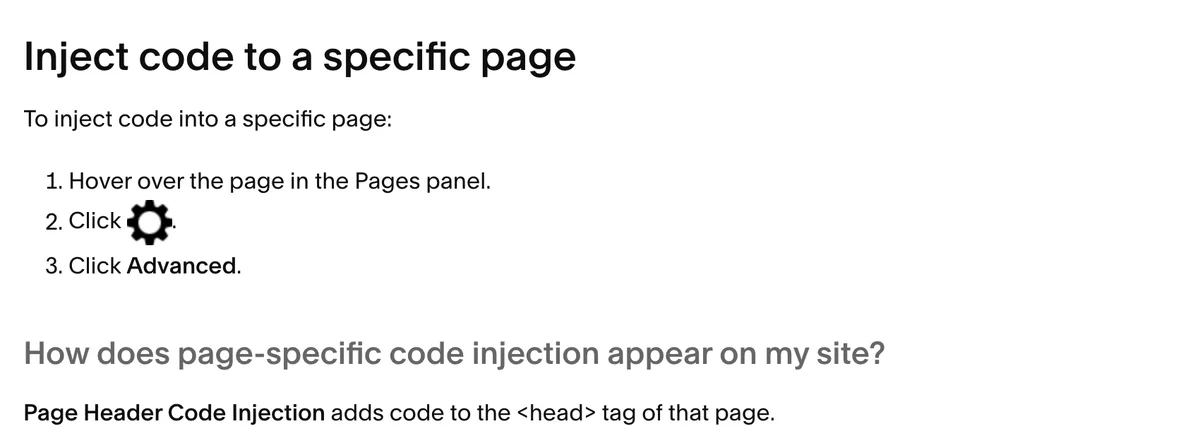
- Hover over the page in the Pages panel.
- Click the gear icon, then Advanced.
- Paste the block into Page Header Code Injection.
- Save, then repeat for the next tour page.
Checkout pages take no code at all.
Squarespace support does not help with custom code. If a paste breaks something, delete the block, save, and run the prompt again.
Test it and keep it current
Test each page the day you add the code. Three free tools cover it:
- Google’s Rich Results Test. Paste the live page URL. It lists the schema Google detects and flags errors.
- Schema Markup Validator at validator.schema.org. It shows every type on the page, including ones Google does not use for search results.
- SEO Pro Extension in Chrome, for a quick look as you click around your own site.
After a few weeks, check the structured data reports under Enhancements in Google Search Console.
Squarespace schema is static. It does not update when your prices or hours change. Put a reminder in your diary for each price change and each new season. Update the block on every page you changed.
While you are in Settings, open Crawlers. Make sure “Block known artificial intelligence crawlers” is unticked. Our post on the three types of AI bot explains why that matters.
Keep expectations straight on AI. Google’s AI Overviews read schema when they index your site. ChatGPT, Claude and Perplexity tend to read the visible text when they fetch a page. Schema helps get you onto the shortlist. The words on the page get quoted, so pair this work with our guide to website content that AI quotes.
Frequently Asked Questions
Do I need a developer to add schema to a Squarespace website?
No. ChatGPT or Claude writes the code from your facts, and you paste it into Code Injection. You need a Core, Plus or Advanced plan. Test every page in Google’s Rich Results Test before you call it done.
Which Squarespace plan do I need for schema?
Core, Plus or Advanced, or a legacy plan that includes code injection. The Basic plan only allows HTML, Markdown and CSS, so a schema script will not run on it. Basic sites keep Squarespace’s built-in schema only.
Does Squarespace add schema automatically?
Yes, six types: blog post, event, local business, organization, product and website. They are locked. You have no way to edit or remove them. The local business block is thin and carries no tourism type. Tours inside a booking widget frame are hidden from Google. Add your own blocks for those gaps.
Should I use ChatGPT or Microsoft Copilot to write schema?
Use ChatGPT or Claude. Copilot often gets the structure wrong. Whichever you use, make it ask you questions first, and use only facts that appear on your page.
How do I know if my Squarespace schema is working?
Paste the live page URL into Google’s Rich Results Test. A good result lists the detected items with no errors. The Schema Markup Validator shows the full list of types. After a few weeks, check the Enhancements reports in Google Search Console.
Should I move from Squarespace to WordPress for better schema?
Not for schema alone. On Squarespace, every block is pasted by hand and updated by hand. On WordPress, schema is set up per page with the plugin, as our Rank Math guide shows. If AI visibility is a priority across a large tour range, plan the move with our web development team.
Conclusion
Start with the business block in your site-wide header today. Then add a block to your three most visited tour pages. Test each one. Want a second pair of eyes? Our members get a schema course and an expert hotline to check the code before it goes live. Our web development team also sets up schema on Squarespace sites that stay on Squarespace.
Free AI Readiness Score
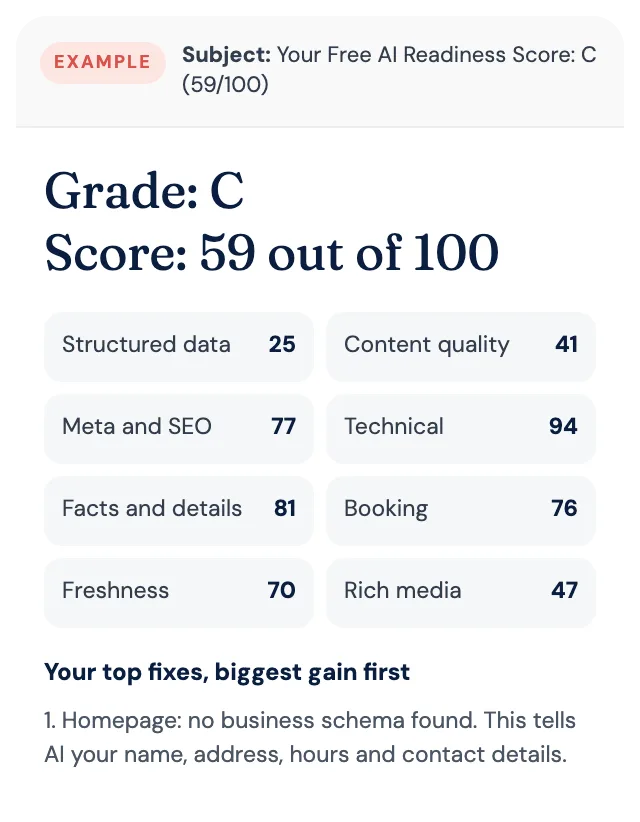
How well does AI read your website?
Get your grade, a score out of 100 and your top fixes, by email. Free for tourism operators. No login and nothing to install.