
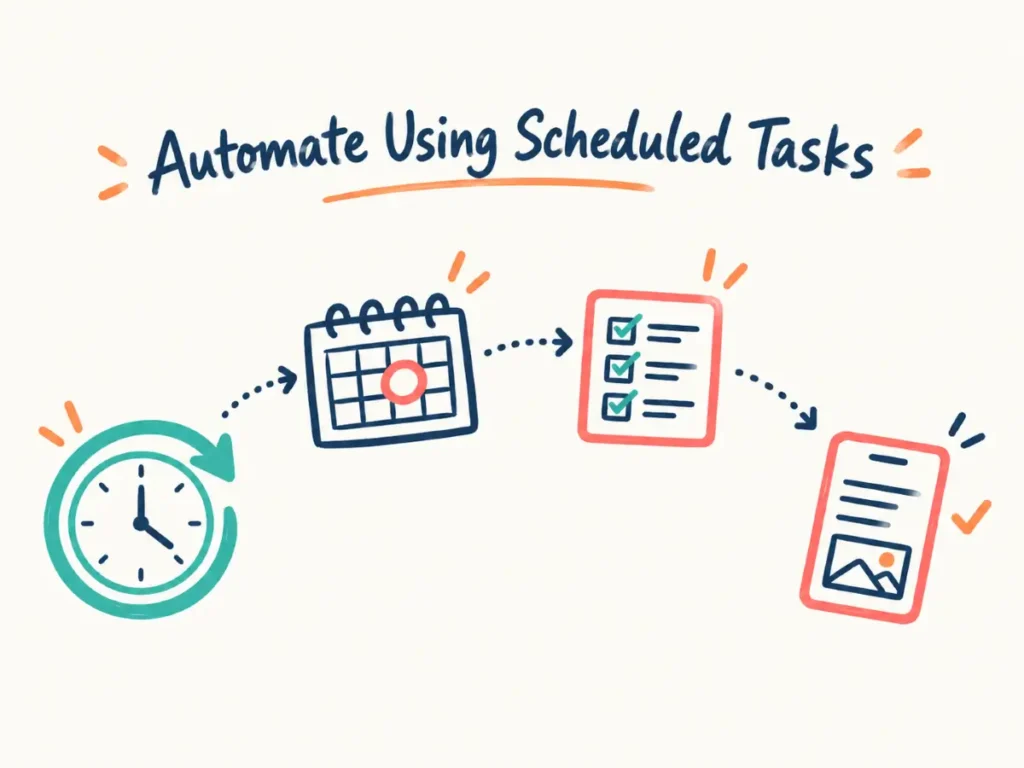
ChatGPT scheduled tasks automate recurring research and content workflows so they run at a set time without you starting them each time. This article will take you through what was covered in our recent Tourism Tech Session where Julia Retson walked the group through how to create, test, and refine scheduled tasks in ChatGPT, from a simple weekly events list to multi-step workflows that connect plugins like Google Drive and Canva.
Jump to: Where scheduled tasks fit | What every task needs | How to build one | Ideas for your business | Also discussed | Things to try this week
Watch the recording
Members will see the replay when logged in. Log in here.
What are Tourism Tech Sessions?
Our Tourism Tech Sessions are twice monthly group coaching calls designed to support AI Enablement Plan members, whether you’re a direct member or a participant of one of our tourism digital capability programs. These sessions provide a space to:
- Learn the latest developments in tourism tech
- Ask questions in a safe, supportive environment
- Hear real-life examples and get practical demos
- Get the confidence to implement what you’ve learned
If you’re not a member, this article will walk you through the key takeaways. Join an AI Enablement Plan to access future Tourism Tech Sessions and have an expert at your fingertips to ask your business-specific questions.
Where scheduled tasks fit in the automation ladder
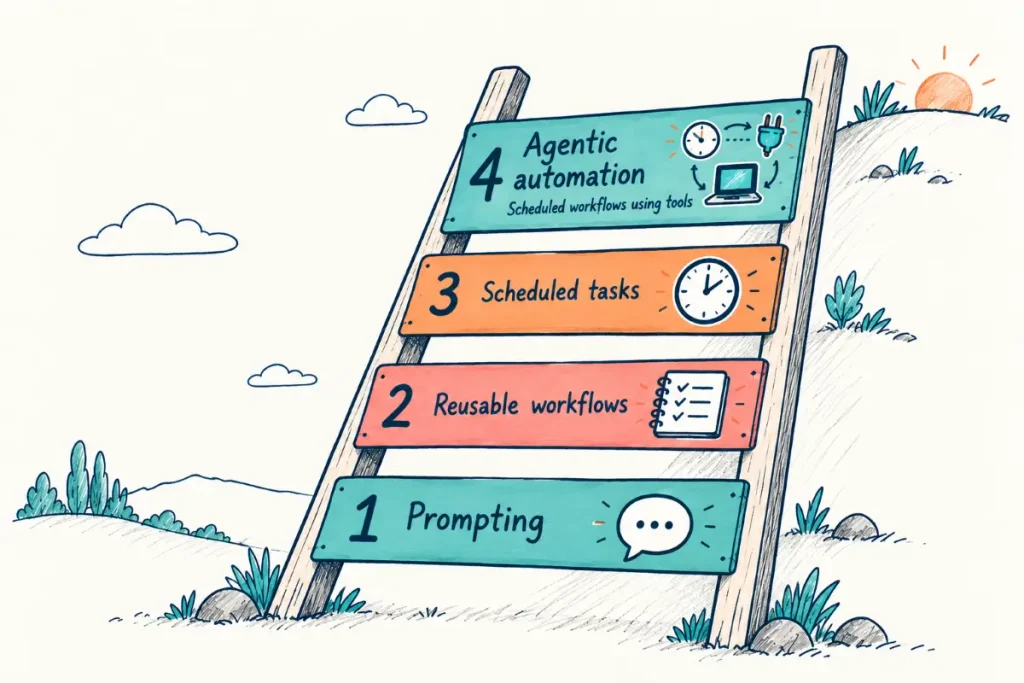
Not all AI use is the same level of automation. A short explanation of the stages of automation:
- Prompting: you ask ChatGPT, it responds, and you do the work yourself with that output. Generally copying and pasting the content elsewhere.
- Reusable projects: you preload your business documents and voice guide so ChatGPT already knows your context into project files and project instructions. No more pasting background information into every session.
- Scheduled tasks: a set of instructions with a trigger so a workflow runs automatically at a set time, without you starting it each time.
- Multi-step agentic workflows: you connect plugins so ChatGPT can create files, update documents, and take actions rather than just producing text.
Most tourism businesses are already using prompting. Reusable workflows using projects and scheduled tasks are the natural next step before you move into full agentic workflows.
What every scheduled task needs
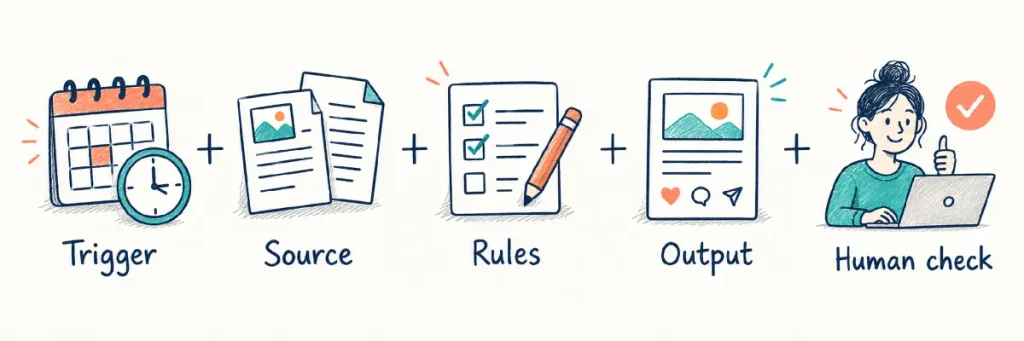
A scheduled task without the right structure will either hallucinate, produce vague output, or do something unexpected. Every well-built task has five components:
- A trigger: when it runs. Daily, weekly, or at a specific day and time. Paid plans and the ChatGPT desktop app let you set an exact hour. Free plans work with a looser timeframe.
- Sources: where to look for information. If you don’t specify, ChatGPT decides for itself and the results will vary. Name the specific websites or data sources you want it to use.
- Rules: what to include, what to exclude, and what it must never do. “Do not publish” is the most important rule for any tourism business starting out with automated workflows.
- Output: what it produces. A social post draft, a Google Doc, an email draft, a Canva update. Be specific, or it will decide for you.
- A human review step: part of your process, not the task itself. Check dates, links, and accuracy before acting on anything it produces. The first few runs of any new task usually need refinement.
How to build a scheduled task step by step
The fastest way to build a good scheduled task is to start in a regular chat window, not directly in the scheduled task builder. Here is the process:
- Pick one recurring task you currently do manually. Start simple.
- Open a regular chat window and tell ChatGPT you want to create an automation. Give it your context, rules, and the output you want. Add this line: “I want to test and refine the instructions here before creating the scheduled task.” Without it, ChatGPT may create the task straight away before you have had a chance to improve it.
- Check the test output. Look for anything vague, incorrect, or missing. Refine the instructions until the output looks right.
- Ask ChatGPT to create the scheduled task from the refined instructions. It will set the settings for you.
- Keep reviewing and improving each time it runs. Every output shows you what rules need tightening. The task gets more useful with each refinement.
To find your scheduled tasks, look in the left-hand panel of ChatGPT and click Scheduled. From there you can create a new task, pause or resume existing ones, run a task manually, or edit the instructions and timing. Under advanced settings you can choose whether the task runs on your computer or in the cloud, which model it uses, and whether it starts a new chat each time or continues in the same one.
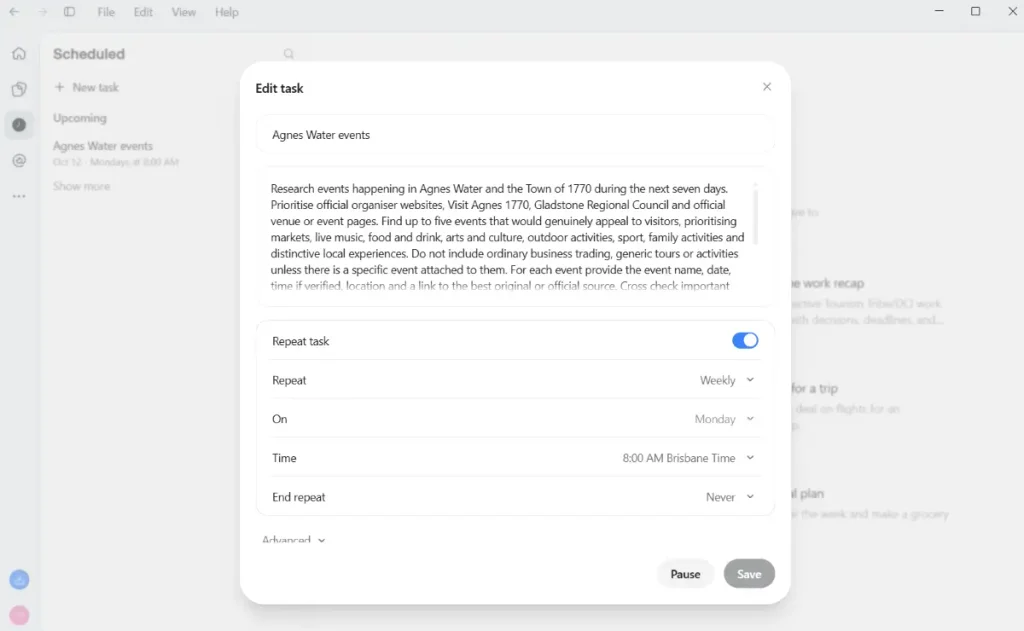
For simple tasks a lightweight model is fine. For research-heavy or multi-step tasks, choose a more capable model. The session noted that model capabilities are changing quickly, so it is worth checking what is current before locking in your choice.
During our Tourism Tech Session we demonstrated how to create a simple scheduled task that searches events in the region in the next 7 days, selects the 5 most suitable to our example business and creates a social post.
Here is a simple prompt you can copy and paste into a ChatGPT chat to get started on a simple scheduled task:
“I run [business] in [town] for [guest type]. Find 3 local events in the next 7 days using [council or organiser websites]. Include dates and source links. Flag uncertainty. Draft an 80-word social post. Do not publish.”
Scheduled task ideas for your tourism business
Here are some ideas of scheduled tasks that could help your business and save you time. Adapt them to your business, location, and audience:
- Weekly events post: every Monday, research verified local events and draft a visitor-friendly social post titled “What’s on this week”.
- Weekday inbox briefing: every morning, summarise which emails need action now, which can wait, and which are just FYI.
- Weekend guest briefing: a summary of what guests arriving this weekend need to know.
- Review reputation check: weekly summary of new reviews and draft replies for anything that needs a response.
- Fortnightly competitor market watch: check what competitors have launched, changed, or promoted recently.
- Monthly AI visibility check: test actual traveller questions and report whether your business shows up in the answers.
- Monthly performance summary: summarise booking and enquiry data and flag anything unusual.
You can take any of these further by connecting plugins. ChatGPT can connect to Google Drive, Gmail, Canva, and countless other tools so the task can produce the output instead of just telling you what text should do into that output or what the image should look like. Install plugins through ChatGPT settings, then include them in your task instructions.
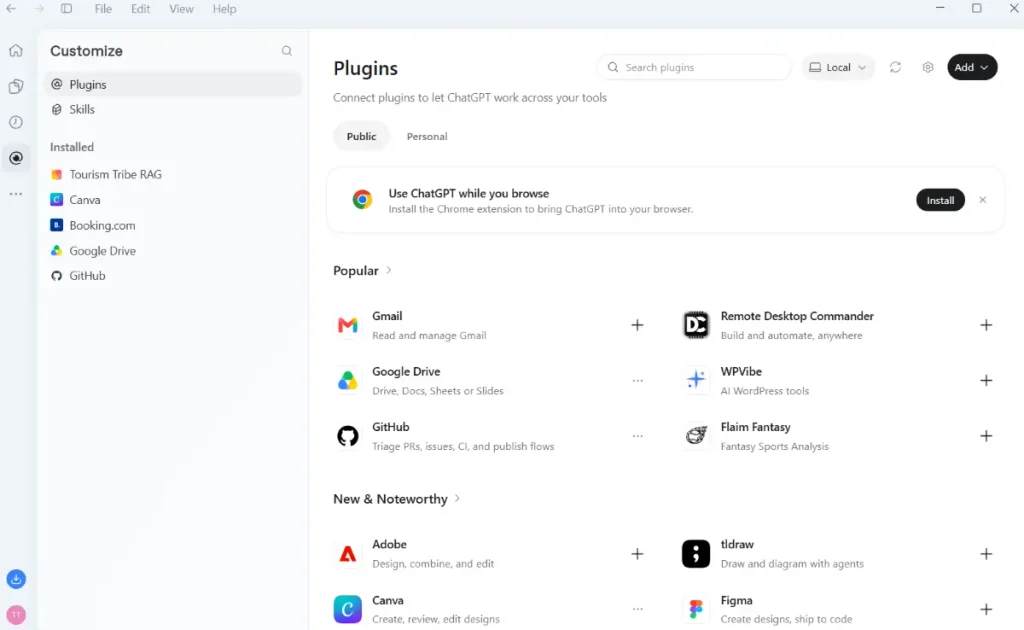
You can see in this image of our connected plugins that there is also our custom built plugin – our Tourism Tribe RAG that contains the knowledge base of our company. Custom built plugins like this are now attainable to many more businesses without the need of a developer with use Codex and Claude Code.
In the simple example scheduled task created during our Tourism Tech session, we demonstrated how this automated workflow could be made even more useful by adding connected apps to the workflow. In this case we moved the output to a Google Doc and created a design in Canva for the social post using a template. This can be even further improved by creating the social posts graphics using an AI tool for each size needed for your channels and then uploading them to Buffer – you would then have social posts fully ready to be published, just waiting on your approval to do so.
Also discussed
What is ChatGPT Space and how does it work?
ChatGPT Space is a team collaboration feature available on ChatGPT Pro, Business, and Enterprise plans. A Space is a shared area where you can store pages, uploaded files, and other content your whole team can access. Pages are interactive documents you can build with charts, checklists, images, and dashboards, edit with teammates in real time, and ask ChatGPT to help update from connected sources.
The practical distinction between Space and Projects:
- Space is for team-wide shared resources: files everyone needs access to across all conversations, like a voice guide or a brand document.
- Projects are for specific workflows: a project for your website, a separate one for social media. Instructions and files in a project apply only within that project.
Think of Space as the shared filing cabinet and Projects as individual workflow folders.
AGENTS.md: what it actually does
In the session, AGENTS.md came up as a file for setting overarching rules. One important clarification: AGENTS.md is a configuration file used by Codex, which is a developer tool that runs in the terminal. It tells Codex how to behave when working on a specific code project. It is not a file that regular ChatGPT Chat reads or uses. If you are using Codex, AGENTS.md is relevant to you. If you are using ChatGPT in the browser, the desktop app, or via the Microsoft Word integration, this file does not apply.
Setting blanket rules in ChatGPT Chat and the Word integration
For regular ChatGPT, persistent instructions are set through Projects. Inside a project, you can add custom instructions that apply to every conversation in that project, and upload files as resources (for example, your voice rules guide). ChatGPT will follow those instructions. If you instruct it to, say, write your content using the rules listed in a file you’ve uploaded to the project resources, it will draw on those files without you having to repeat them each time.
To enforce a rule like “never publish, draft only” across your workflows, add it as a custom instruction in the relevant project. For rules that should apply to every conversation regardless of project, use Custom Instructions in your ChatGPT settings.
Things to try this week
- Find Scheduled Tasks in ChatGPT’s left-hand panel. Have a little look around the area and see what controls you have.
- Pick one recurring task you do manually each week. Start with something simple, like finding local events or summarising new reviews.
- Draft your task instructions in a regular chat window. Include your trigger, sources, rules (including “do not publish”), and output. Ask ChatGPT to run a test and show you the result.
- Refine the output until it looks right, then ask ChatGPT to create the scheduled task based on those instructions.
- Pause the task after it is created. Run it manually once to check the first real output before letting it run on schedule.
- Review what permissions any connected apps actually need. Revoke anything broader than necessary.
Want to get your tourism business more visible online?
Scheduled tasks are one part of a broader AI strategy. Knowing what to automate, which tools to connect, and how to stay visible as AI changes search takes more than a single session. Tourism Tribe offers three ways to help:
- GEO Assessment: find out how visible your business is to AI tools right now
- Digital Direction Plan: a personalised roadmap for your digital and AI strategy
- AI Enablement Plans: ongoing access to Tourism Tech Sessions, tools, and hands-on support
What are ChatGPT scheduled tasks?
ChatGPT scheduled tasks are automated workflows that run at a set time or interval without you starting them each time. You give ChatGPT a trigger (when to run), sources (where to look), rules (what to do and not do), and an output format. It then executes that workflow automatically, for example researching local events every Monday morning and drafting a social post for your review.
Do I need a paid ChatGPT plan to use scheduled tasks?
Scheduled tasks are available on both free and paid ChatGPT plans, but with differences. On a paid plan using the desktop app, you can set an exact time for the task to run. On the free plan you can create scheduled tasks but cannot specify the exact hour. Free plans also have a lower limit to the number of scheduled tasks you have have running.
How do I stop a ChatGPT scheduled task from publishing content automatically?
Add “do not publish” as a rule in your task instructions. This tells ChatGPT to produce draft outputs only, which you review before acting on them.
What is the difference between ChatGPT Space and Projects?
Space is a shared area for your whole team where you can store files, pages, and resources. Projects are for specific workflows where you add custom instructions and files that apply only within that project. Use Space for team-wide resources. Use Projects for workflow-specific files, for example a project for your website and a separate one for social media.
What is AGENTS.md and does it apply to ChatGPT Chat?
AGENTS.md is a configuration file used by Codex. It is not a file that regular ChatGPT Chat or Work reads. If you are using ChatGPT in the browser, the desktop app, or via the Microsoft Word integration, you set persistent rules through Projects and Custom Instructions in your settings, not through an AGENTS.md file.
How do I connect ChatGPT to Google Drive or Canva for scheduled tasks?
Go to ChatGPT settings and install the plugins for Google Drive, Canva, or other tools you want to connect. Once installed, you can include them in your scheduled task instructions, for example asking ChatGPT to create a Google Doc with this week’s events list or update a Canva design with new content. You will be asked to authorise the connection when you first use each plugin.
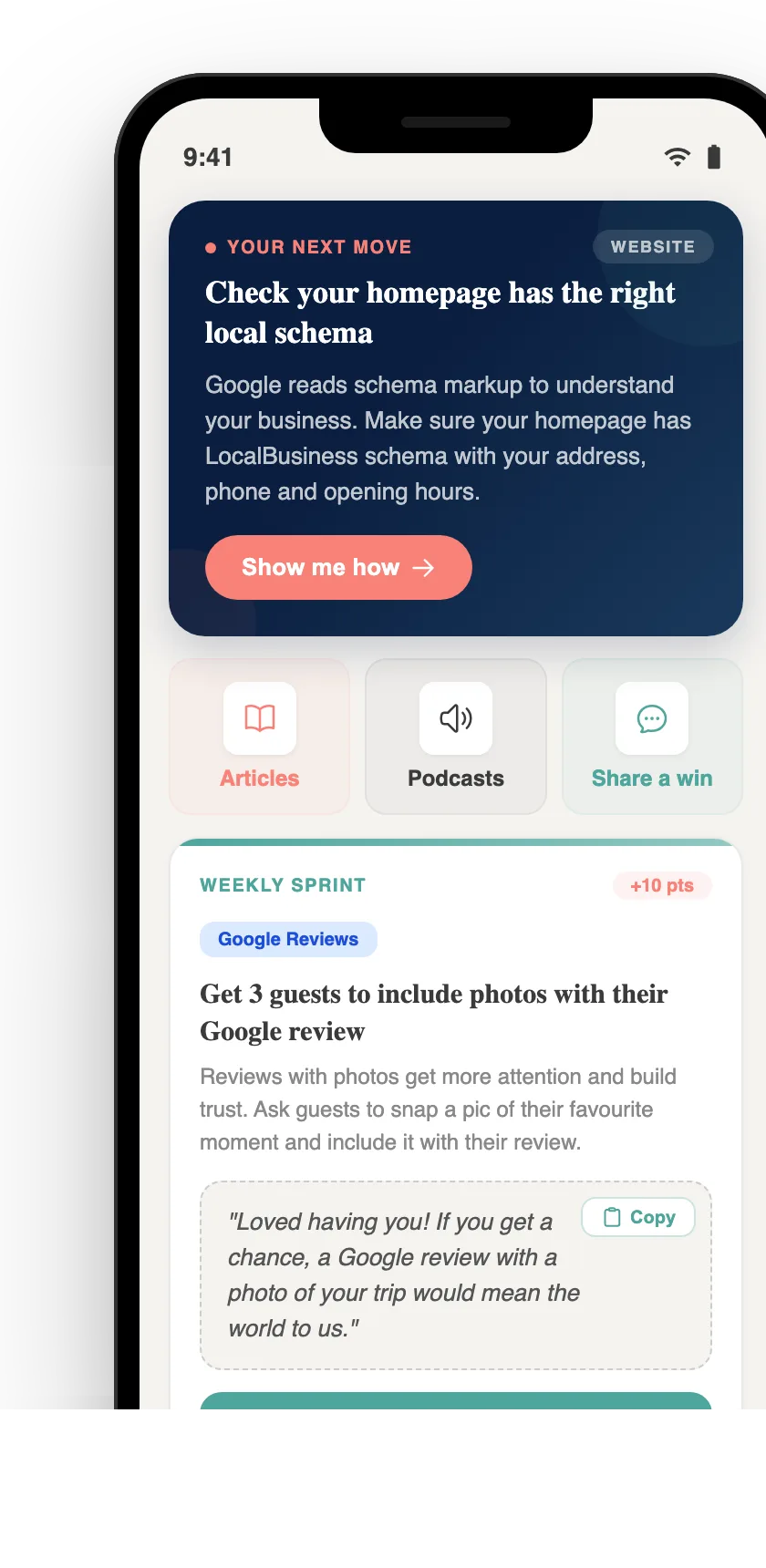
Your free AI marketing coach, right in your pocket
The free Pocket Rocket app gives you a personal AI marketing coach, website audit, weekly action plans and 5-minute tips. Built for tourism operators.