

GPT-6 Astra launched on 3 September 2026 and marks a shift from chat-based AI to autonomous agents: you give it a goal, and it manages the work. This Tourism Tech Session covered what Astra means for small tourism businesses, how to set up the ChatGPT desktop app, and how to organise your project files so AI can do useful work without constant supervision.
Quick links
- Watch the recording
- What are Tourism Tech Sessions?
- What is GPT-6 Astra?
- ChatGPT modes: Chat, Work, and Codex
- Your AI file framework
- Computer use: letting AI work on your desktop
- Keeping your setup secure
- Things to try this week
Watch the recording
Members will see the replay when logged in. Log in here.
What are Tourism Tech Sessions?
Our Tourism Tech Sessions are twice monthly group coaching calls designed to support AI Enablement Plan members, whether you’re a direct member or a participant of one of our tourism digital capability programs. These sessions provide a space to:
- Learn the latest developments in tourism tech
- Ask questions in a safe, supportive environment
- Hear real-life examples and get practical demos
- Get the confidence to implement what you’ve learned
If you’re not a member, this article will walk you through the key takeaways. Join an AI Enablement Plan to access future Tourism Tech Sessions and have an expert at your fingertips to ask your business-specific questions.
What is GPT-6 Astra?
GPT-6 Astra is OpenAI’s latest model, released on 3 September 2026. Unlike previous ChatGPT models, Astra is an agent. You give it a goal, it allocates tasks, checks its own work, and comes back with a finished result. It asks questions only when it needs to. You don’t write step-by-step prompts.
Think of it as the difference between giving a capable manager a brief versus giving a junior staff member a detailed checklist. With Astra, you state what you want, “set up a repeatable newsletter system and figure out where we should source the content”, and it works through the steps itself.
Running Astra requires a paid plan. In Australia, the Pro plan costs around $200-$300 per month. If you’re running a team, the Business plan is worth considering: OpenAI guarantees your data won’t be used to train their models on Business accounts, and you can assign different seat tiers to different staff based on how much compute power they need.
Astra also introduces four model tiers within ChatGPT: Astra (top-tier, agentic), Sol (faster and cheaper for routine tasks), Terra, and Luna. Sending a complex business task to Luna is like asking a receptionist to write your financial strategy. Match the model to the complexity of what you’re asking it to do.

ChatGPT modes: Chat, Work, and Codex
ChatGPT now has three operational modes. Which one you use determines what the AI can access, how it interacts with your tools and how it speaks to you.
Chat is the original conversational mode. You ask questions and get answers. It’s not connected to your business tools and doesn’t retain project context between sessions. Available in web, mobile and desktop.
Work connects ChatGPT to your existing apps (Gmail, Google Calendar, Dropbox, Buffer, Instagram) without any coding. You add plugins, set permissions, and it can carry out tasks across those tools. This is where most tourism operators will spend most of their time. Available in web, mobile and desktop.
Codex is for technical work: building something, editing code, creating files, or anything that would previously have required a developer. The model explains things more technically in this mode and gains access to a programming toolset. The practical benefit is that you can switch between Work and Codex in the same conversation without losing context. If a task in Work mode needs coding capabilities, you click back to Codex and carry on from where you left off. Available only in desktop app at the moment.
Download the ChatGPT desktop app here.
Your AI file framework
How well AI performs for your business depends largely on how you’ve set up your project files. Before giving it any significant task, your project folder should contain two key files.
An agents.md file holds your operating instructions: what the AI should do in this project, what it’s not authorised to do (never send an email without approval, never publish content live), and what tools it has access to. This is the AI equivalent of an induction manual for a new staff member.
A voice.md file holds your brand voice rules: how you write, what tone you use, what language you avoid, and how you describe your experiences or accommodation. Without this, the AI writes in a generic style that sounds nothing like your business. A basic version might specify Australian English, how you address customers, and what your brand never claims. More detailed versions include specific phrases you use, how you describe experiences, or what you never say about competitors.
On top of these two files, you can build a library of skills (reusable recipe files for specific tasks like writing a review response, building a WordPress page, or creating an FAQ). Skills prevent the AI from guessing when it doesn’t know how a particular platform or task works. Free templates for agents.md and voice.md files are available on GitHub.
As your setup grows, keep your project folders tidy. Every file the AI reads to gather context uses tokens and takes time. Organised, specific files mean faster, cheaper responses. Once a project has accumulated a large volume of reference material, moving it into a queryable database (rather than individual files) gives the AI much faster access to what it needs.
Computer use: letting AI work on your desktop
Previously, getting AI to act in your business systems required API access, a backend connection that many platforms don’t offer. Platforms like Wix, for example, don’t provide API access, which meant AI couldn’t make changes there programmatically.
‘Computer use’ changes this. The AI operates the desktop the way a human would: clicking, typing, reading what’s on screen. It doesn’t need a backend connection. If you can do it manually on screen, the AI can do it with computer use.
You can also train it by recording your screen. Record yourself walking through a task, mapping data between two spreadsheets, for example, and the AI watches, learns the workflow, and replicates it. This is closer to showing a staff member how to do the job than writing a prompt.
In a live demo during this Tourism Tech Session we demoed the AI accessing FluentCRM inside the ChatGPT browser panel. It found an existing email template, duplicated it, populated it with researched regional content, and staged a newsletter draft. It did this without step-by-step prompting and without publishing anything, because the agents.md file specified that publishing requires explicit approval. (Note: AI tools at the moment will go by your rules in the agents.md file about 90% of the time, occasionally you’ll get an “oops, sorry, I already sent that”, so it’s always best to limit the permissions and access that any AI tool has to the absolute minimum possible to complete the required work). The AI also operates inside its own browser panel rather than taking over your Chrome browser, so you can keep working while it runs tasks.
If you’re using computer use with WordPress, set up a restricted user role for your AI assistant with limited permissions. This prevents it from accidentally publishing pages or deleting content when it has access to your site. A custom plugin that creates this role was shared during the session.
Keeping your setup secure
Computer use requires solid password security before you start. The risk is prompt injection: when the AI browses a website, a malicious page can embed hidden instructions telling the AI to do something it shouldn’t. If your passwords are stored in plain text on your computer, a prompt injection attack could access them.
Use a password manager with biometric authentication, tools like 1Password, so passwords are never stored in a spreadsheet, on your desktop, or written down. The ChatGPT browser inside the desktop app doesn’t yet support password manager plugins directly, so you’ll need to copy and paste passwords manually for now. That’s expected to change as integration matures.
When you connect AI to your business tools, use a restricted account rather than your admin login. Give it the minimum access it needs to do the job. This applies to WordPress, your CRM, your social media tools, and any other platform you connect it to. Review your permissions regularly as you add integrations.
Things to try this week
- Download the ChatGPT desktop app from chatgpt.com and work through the initial setup. Enable computer use and Chrome browser integration in the settings menu.
- Set up a password manager (1Password or LastPass) before enabling computer use. Move any passwords stored in spreadsheets or on your desktop into it.
- Create a project folder for your business and add an agents.md file with basic instructions including what the AI should and shouldn’t do. Find free templates on GitHub.
- Write a voice.md file for your brand: Australian English, your tone, what language to avoid, and how you describe your experiences or accommodation. The more specific, the better.
- Install Whispr Flow on your desktop. It converts voice to text up to 20 times faster than typing and works alongside ChatGPT without replacing the built-in voice mode.
- Upload this session’s transcript to a “Tourism Tribe” folder in ChatGPT, set the model to Astra, and ask it to review your current AI setup and identify what’s missing based on the session.
Want to get your tourism business working smarter with AI?
GPT-6 Astra and the ChatGPT desktop app open up new possibilities for automating routine tasks, but getting the setup right takes time and guidance. Tourism Tribe offers three ways to help:
- GEO Assessment: find out how visible your business is to AI tools right now
- Digital Direction Plan: a personalised roadmap for your digital and AI strategy
- AI Enablement Plans: ongoing access to Tourism Tech Sessions, tools, and hands-on support
What is GPT-6 Astra and how is it different from previous ChatGPT models?
GPT-6 Astra is OpenAI’s first autonomous agent model, released on 3 September 2026. Previous ChatGPT models responded to prompts one step at a time. Astra takes a goal and manages the work independently, allocating tasks, checking its own outputs, and asking questions only when necessary. You don’t write step-by-step prompts to use it.
Do I need a paid ChatGPT plan to use GPT-6 Astra?
Yes. GPT-6 Astra requires at least a Pro plan, which costs approximately $200-$300 per month in Australia. The $20 basic plan does not include Astra. For businesses with multiple staff, a Business plan is recommended because it guarantees your data won’t be used to train OpenAI’s models and allows per-seat pricing with different compute tiers for different staff members.
What is the ChatGPT desktop app and how do I download it?
The ChatGPT desktop app is a standalone application you install on your computer. It gives AI access to your local files and enables computer use, where the AI can operate your desktop like a human would. Download it from chatgpt.com or search for it in your device’s app store. The setup wizard walks you through key permissions including computer use and browser access.
What should I put in my agents.md and voice.md files?
Your agents.md file holds operating instructions: what the AI should do in this project, what tools it should use, and what it’s not authorised to do (for example, never send emails or publish content without your approval). Your voice.md file holds your brand voice rules: language, tone, what to avoid, and how you describe your business and experiences. Free templates for both are available on GitHub.
How does computer use work in ChatGPT?
Computer use lets AI operate your desktop the way a human would, clicking through screens and filling in fields, without needing backend API access to the system you’re working in. Enable it in the ChatGPT desktop app settings. Once enabled, the AI works inside its own browser panel rather than your Chrome browser, so you can keep working while it runs tasks. You can also train it by recording your screen and letting it learn a workflow from watching you.
How do I keep my business data secure when using AI with computer use?
Set up a password manager with biometric authentication (such as 1Password or LastPass) before enabling computer use, and remove any passwords stored on your desktop or in spreadsheets. Never give the AI admin access to your business tools. Create a restricted user account for it instead. For WordPress sites, install a plugin that creates a limited AI Assistant role that prevents the AI from publishing or deleting content.
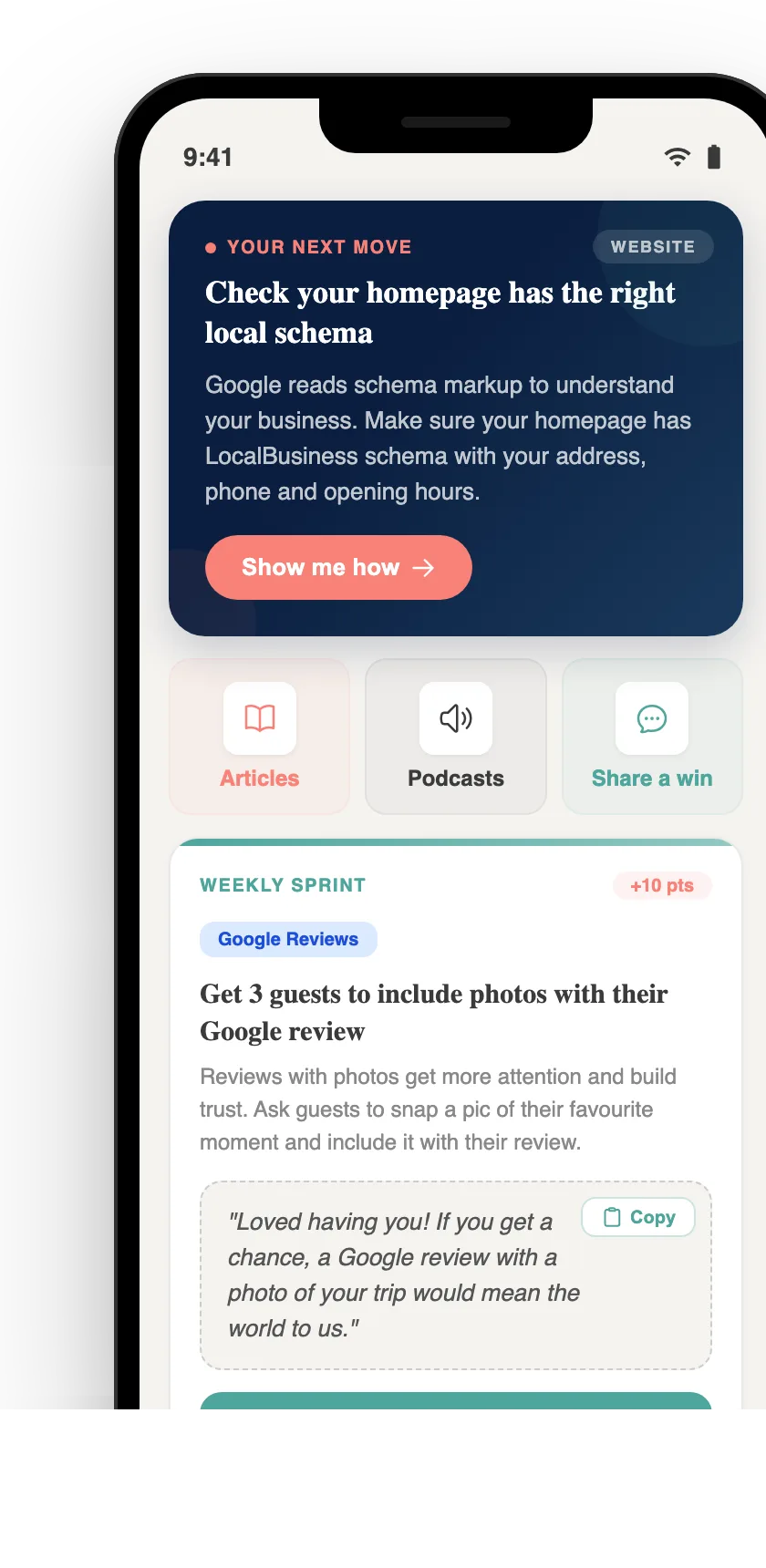
Your free AI marketing coach, right in your pocket
The free Pocket Rocket app gives you a personal AI marketing coach, website audit, weekly action plans and 5-minute tips. Built for tourism operators.