
QUICK LINKS:
- Check each profile should exist
- Get a separate review link and QR code for every profile
- Match every guest to the right profile
- Put the right QR code in the right place
- Stay inside Google’s review rules
- Track reviews profile by profile
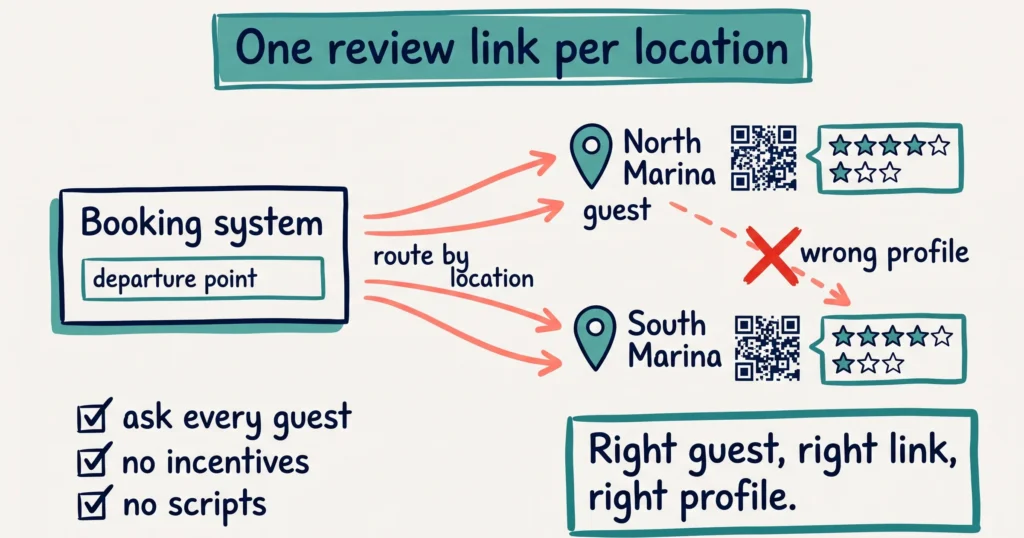
Give every Google Business Profile its own review link and QR code, then send each guest the link for the place they visited. Google creates a separate link for each profile at business.google.com. Your job is to route each guest to the right one: by departure point in your booking system, and by QR code at each physical site.
Mix them up and you lose twice. Reviews land on the wrong profile, and Google’s policy says content that “does not accurately represent the location” gets removed.
This guide covers setup, routing, the rules and how to track it.
Check each profile should exist
Before collecting reviews, confirm every profile is one Google wants to see. Google’s guidelines are specific (Google Business Profile guidelines).
- One profile per location. “Do not create more than one page for each location of your business, either in a single account or multiple accounts.”
- Separate departments get separate profiles only if they’re public-facing and “operate as distinct entities”. Each needs a different name and a different main category from the main business.
- Some co-located businesses each get their own profile. Google’s own example: a car rental at an airport, “only if pick up and drop off happen at separate locations.”
- Chains keep one name. “All locations must have the same name” unless the real-world name varies by location.
What that looks like in tourism:
- A cruise company departing from two different marinas: two profiles, one per marina.
- A holiday park with a separately named café open to the public: two profiles, if the café runs as its own business.
- A tour company with one office and three pickup points: usually one profile, at the place guests go.
If you’ve ended up with two profiles for the same place, or profiles under old trading names, fix that first. Splitting reviews across duplicates weakens every one of them.
Get a separate review link and QR code for every profile
Each profile has its own link. Google’s steps (Google help):
- Open business.google.com on a computer. Google says review QR codes “can only be generated on a computer browser, not on mobile devices.”
- Pick the profile from your list of businesses.
- Click Read reviews, then Get more reviews.
- Copy the link, and right-click the QR code to save it.
- Repeat for every profile.
Name the files clearly. “review-link-marina-north.txt” and “review-qr-marina-north.png” beat “QR code (3).png” six months from now.
Keep a simple table: profile name, address, review link, QR file, who on your team is responsible. Store it where everyone who sends guest emails can find it.
Match every guest to the right profile
The review request works best when it goes out automatically after the experience, with the right link already in it.
- Find the field in your booking system that says where the guest went. Departure point, property, product or location.
- Map each value to a profile. “Sunset Cruise, North Marina” goes to the North Marina profile. “Reef Day Trip, South Marina” goes to the South Marina profile.
- Set up one post-trip email or SMS per location, or one template that inserts the right link. Many booking systems handle this with a template per product.
- Send it soon after the experience. Google suggests receipts, thank-you emails and the end of a chat as good moments to ask (Google help).
No location field in your booking system? Use product names. If a product runs from more than one place, split it into one product per departure point. That fixes your reviews and makes your booking pages clearer for guests and AI tools.
Hypothetical example: a whale watching operator runs tours from two harbours 80 kilometres apart. Every booking already records the departure harbour. They set up two thank-you emails in the booking system, each with its own Google review link. From then on, each harbour’s reviews land on its own profile and build its own rating.
Put the right QR code in the right place
On-site requests catch guests at the best moment: straight after the experience.
- Print each QR code with the location name on it. “Review us: North Marina” stops staff putting the wrong sign up.
- Put it where the experience ends. The gangway, the checkout desk, the café counter, the back of the bus.
- Give staff the right card. If guides work across locations, give them one card per location and tell them which to use.
- Check the signs twice a year. Scan each one with your phone and confirm it opens the right profile.
Stay inside Google’s review rules
Google’s review policy applies to every profile (Google Maps content policy). The rules that trip up multi-location operators:
- Ask every guest, happy or not. Google prohibits businesses that “selectively solicit positive reviews from customers.” That means no filtering form that only sends five-star guests to Google.
- No incentives. No discounts, freebies or prize draws for reviews. Google calls this fake engagement and removes the reviews.
- No scripts. Don’t ask guests to include specific words or name staff members. Google’s April 2026 policy update made this explicit, as we covered in our Google Business Profile session recap.
- No staff reviews. Current or former employees reviewing your business counts as a conflict of interest.
- The right location only. Reviews must be about the experience at that location. Sending a guest from one site to review another breaks the rule.
Guests also need to be signed into a Google account to leave a review (Google help). If your guests are mostly international, expect some to review on Tripadvisor instead, and give them that link too.
Track reviews profile by profile
Count reviews per profile, once a month. A combined total hides the profile that’s falling behind.
- Log in to business.google.com and note review count and average rating for each profile.
- Put the numbers in your table, one column per month.
- Look for gaps. A profile with few new reviews usually means a broken link, a missing sign or a team that stopped asking.
- Reply to reviews on every profile. Use real details from the guest’s visit. Replies show Google and future guests that each location is active.
Reviews feed AI search as well. AI tools read review text to work out what each location does well. A profile with recent reviews that mention the experience gives them more to quote. For the website side, see should I put customer reviews and testimonials on my own website?
Frequently Asked Questions
Does each Google Business Profile have its own review link?
Yes. Every profile has its own review link and QR code. Open business.google.com on a computer, choose the profile, click Read reviews and then Get more reviews to copy the link or save the QR code.
Can I use one review link for all my locations?
No. A review link points to one profile only. Google requires reviews to reflect the experience at that specific location, so send each guest the link for the place they visited.
Can I move reviews from one Google profile to another?
Google has a help article called “Move your reviews across Business Profiles” that covers when this is possible. Read it before you plan on moving anything. The safer path is to get the routing right from the start so reviews land on the correct profile.
Should a tour company have a separate profile for each pickup point?
Usually not. Google’s guidelines allow one profile per business location, and a profile should represent a real place your business operates. A kerbside pickup point rarely qualifies. Separate departure bases guests visit, such as two different marinas, usually do.
Is it okay to send only happy guests the Google review link?
No. Google’s policy prohibits businesses from selectively soliciting positive reviews. Send the request to every guest, and handle complaints by replying to reviews and fixing the issue.
How do I automate review requests for multiple locations?
Use the location or product field in your booking system to pick the right link. Set up one post-trip email per location, or one template that inserts the matching link, and send it soon after the experience.
Conclusion
Every Google profile needs its own review link, and every guest needs the link for the place they visited. Map your booking system’s location field to the right link, label your QR codes by site, and ask every guest. Then count reviews per profile each month so you spot the location that’s falling behind.
Your free AI marketing coach, right in your pocket
The free Pocket Rocket app gives you a personal AI marketing coach, website audit, weekly action plans and 5-minute tips. Built for tourism operators.