
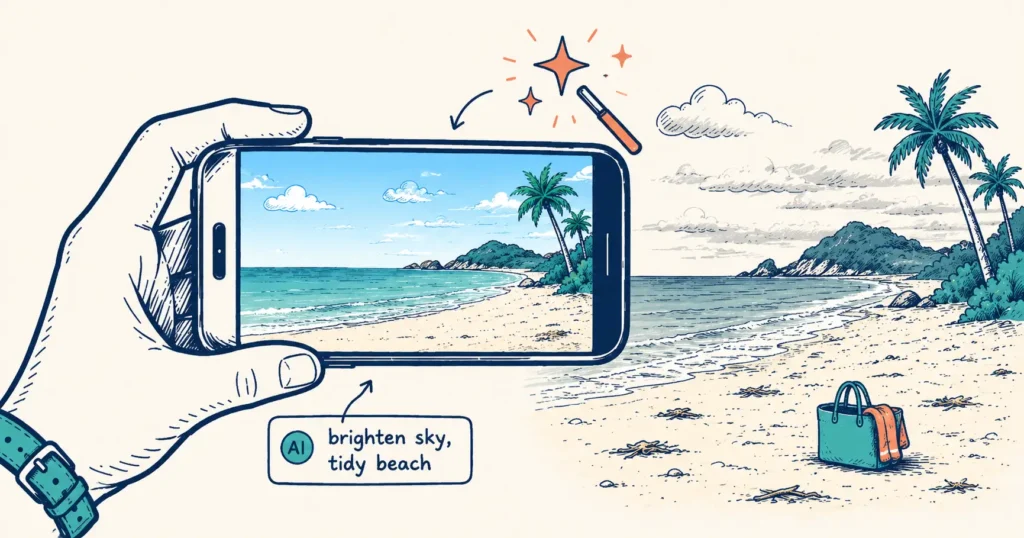
In this Tourism Tech Session, Liz Ward showed how tourism operators can use AI to enhance photos and create marketing images without misleading guests. We cover what AI can and cannot do to your visuals, how to write effective prompts, and how Canva and ChatGPT compare for real editing tasks. Julia Retson also shared a critical workflow tip for video editing in Canva that saves significant rework.
Jump to: Where your images are used | What AI can and cannot do | Writing effective prompts | Canva vs ChatGPT | How search engines read images | Video editing tip | Things to try this week
Watch the recording
Members will see the replay when logged in. Log in here.
What are Tourism Tech Sessions?
Our Tourism Tech Sessions are twice monthly group coaching calls designed to support AI Enablement Plan members, whether you’re a direct member or a participant of one of our tourism digital capability programs. These sessions provide a space to:
- Learn the latest developments in tourism tech
- Ask questions in a safe, supportive environment
- Hear real-life examples and get practical demos
- Get the confidence to implement what you’ve learned
If you’re not a member, this article will walk you through the key takeaways. Join an AI Enablement Plan to access future Tourism Tech Sessions and have an expert at your fingertips to ask your business-specific questions.
Your images work differently depending on where they appear
Liz Ward opened the session with a point that shapes everything else: your imagery is a guest promise. Online photos sit at the centre of the trust journey. Travellers use them to validate a destination during the planning stage, then to confirm their decision before booking. Getting this wrong drives bad reviews. Getting it right builds the kind of trust that leads to bookings.
The same photo strategy does not work in every context. Liz outlined three distinct channels, each with different rules:
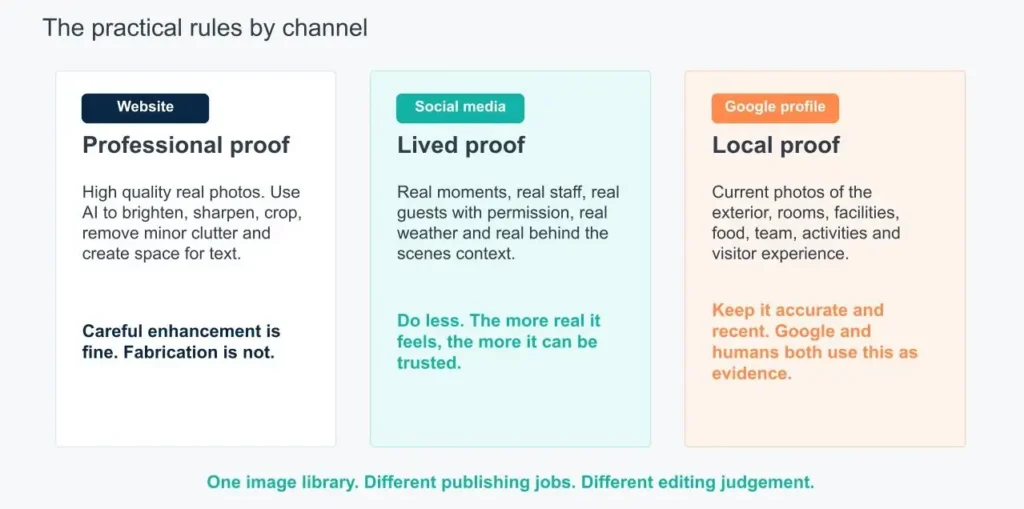
Your website is a professional storefront for warm leads who have already heard of you through AI tools, social media, or word of mouth. It needs your absolute best: high-quality professional shots for hero images and product photos. Phone photos are not the right fit here.
Social media is where travellers check that you’re real, current, and relatable. Research shows only 36% of consumers trust traditional brand advertising, while authentic, unfiltered content performs far better. Liz referenced TikTok’s own guidance: raw, genuine moments captured on mobile phones work best for tourism operators. If you don’t have time to film video, 6-10 narrative-driven still images can form a Reel, TikTok, or Facebook Story. In social media, the more real it feels the better. Limit AI use here.
Your Google Business Profile serves local searchers who have already committed to visiting your area and are choosing between specific businesses. Google’s algorithm uses these images as evidence of current, real-world activity. Liz recommended uploading a Google Post fortnightly, repurposing content you’ve already published to social channels.
What AI can and cannot do to your photos
AI image editing tools have genuine practical value for tourism operators. Liz drew a clear line between what’s acceptable and what crosses into misleading territory.
Acceptable uses: cropping and resizing, brightening or sharpening a photo, removing background clutter (a parked car, a temporary sign), removing items left in shot by accident (a backpack on a trail), extending the sky for a better aspect ratio, and adjusting a cloudy sky to better reflect typical conditions. Professional photographers already do all of this routinely.
What to avoid: removing permanent structural features (a water tank that’s part of the property, existing buildings), significantly altering the landscaping or mood of a setting, inventing accessibility features that don’t exist, and fabricating cultural authority. The rule of thumb is simple: the edited image must still be a genuine representation of what guests will actually experience when they arrive.
Adding people is an amber-light area. Liz shared an example where Tourism Tribe helped an accommodation operator who had no professional images by using a mobile phone shot of an empty deck, then using AI to overlay believable family figures based on a detailed business brief. This can work. But the figures must never be presented as real guests or real staff, and you must not fabricate demographic representation that doesn’t reflect your actual business.
How to write effective AI image prompts
Vague prompts produce vague results. Liz’s approach is to build prompts that are highly specific: state exactly what needs to change, what must stay the same, where the image will be used, what aspect ratio is needed, and what must not be altered.
The example prompt Liz shared in the session: “Brighten the room slightly and remove the backpack. Keep the room layout, bed, view, furniture, and lighting natural. Do not add people or change the space.” That level of specificity is what produces a result you can actually use.
This structure works across ChatGPT, Gemini, Claude, and Canva’s AI editing tools. The same logic applies regardless of which tool you use.
Canva vs ChatGPT: what the bake-off revealed
Liz ran a live comparison using a raw smartphone photo taken at Home Beach on Stradbroke Island. The prompt asked both tools to add a family with school-aged children playing beach cricket, representing a target camping and touring market.
Canva produced accurate perspective and natural positioning. The figures looked like they belonged in the scene. When the prompt was updated to request a family of Indian descent without the dog, Canva adjusted the figures with natural stances and accurate shadowing.
ChatGPT produced high-quality results but retained a slightly stylised, 3D aesthetic. When asked to switch the family’s ethnicity, it executed the change but kept the figures in the same positions with less dynamic action. ChatGPT’s key advantage: resizing to a vertical aspect ratio. Canva’s text prompt engine left white space when asked to extend the image. ChatGPT generated additional believable sky context automatically.
Julia Retson’s tip: if you need to extend an image inside Canva, use the dedicated Magic Extend function rather than the text prompt. It handles the stretch far more cleanly.
One practical workflow from the session: Julia uses ChatGPT or Gemini to generate a clean, text-free background image, then imports it into Canva to add text and interactive elements as separate layers. This gives precise control over positioning without being locked into a flat, non-editable file.
How search engines and AI tools read your images
Liz explained how AI models evaluate images: they decode pixel groupings and compare them against historical data (a blue band above a sandy strip reads as a beach scene), then gather contextual meaning from everything around the image. That includes your alt text, image captions, nearby headings, body copy, page titles, booking parameters, and structured data schema.
The practical consequence: the image file itself is only part of what search engines assess. You need to actively manage the surrounding signals. For website images, that means clean filenames (not IMG_4827.jpg), descriptive captions, and alt text written naturally for screen readers rather than keyword-stuffed fields.
One thing to watch: online travel agencies and third-party platforms often strip EXIF and IPTC metadata from images during upload. Save your images under clear names in organised folders on your own system before uploading anywhere. You can’t rely on the platforms to preserve that data.
Julia noted that while Google’s Gemini platform generated strong images a few months ago, it still appends a watermark to outputs, making ChatGPT more practical for clean image creation, though it’s not too hard to crop out that watermark if it bothers you and Gemini is your preferred tool. Research confirms search engines do not penalise AI-edited images, provided the assets are genuinely useful to the end user.
Video editing tip: sort your background video before adding layers
The session ended with a video editing topic prompted by participant questions. Julia Retson gave a critical warning about Canva’s video editing interface that will save you hours of rework.
In CapCut and Google Vids, when you rearrange or switch a scene that has a background video, text overlays, and graphics, all associated layers move together as a single block. In Canva, every layer is independent. If you trim or move the background video after you’ve already added text overlays, you’ll need to manually shift and re-align every single overlay to match the new timing.
The fix: finalise your background video and all trimming in Canva before you add any text or secondary elements. Julia also recommended Google Vids as a free alternative for Google Workspace users. It handles the same editing logic as CapCut, and the core concepts transfer directly between platforms.
Things to try this week
- Audit your three channels. Look at your website hero shots, your last 5 social posts, and your Google Business Profile photos. Do they serve the right purpose for each context?
- Test a specific AI image prompt. Take a real photo from your business and try editing it in Canva or ChatGPT using Liz’s prompt structure: state what to change, what to keep, where it will be used, and what must not be altered.
- Check your website image alt text. Open three pages on your site and inspect the alt text on the images. Is it descriptive and natural, or blank? Update any that are missing or keyword-stuffed.
- Try the hybrid image workflow. Generate a clean background image in ChatGPT with no text or buttons, then import it into Canva and add your text overlay as a separate layer for precise control.
- Post a Google Business update. Repurpose a recent social post as a Google Business Profile post. It takes two minutes and feeds local search relevance with current content.
- If you edit video in Canva: next time, finalise all background video trimming before adding text overlays. Save yourself the rework.
Want to get your tourism business more visible online?
This session covered how the right images, edited and placed correctly, directly affect whether travellers trust you enough to book. If you want to know how your current visuals and online presence are being read by AI tools, Tourism Tribe offers three ways to help:
- GEO Assessment: find out how visible your business is to AI tools right now
- Digital Direction Plan: a personalised roadmap for your digital and AI strategy
- AI Enablement Plans: ongoing access to Tourism Tech Sessions, tools, and hands-on support
Can I use AI to edit my tourism business photos?
Yes, with clear boundaries. AI image editing is safe for cropping, resizing, brightening, sharpening, removing temporary background clutter, and extending image dimensions for different aspect ratios. What you must not do is remove permanent features of your property, fabricate experiences that don’t exist, or create images that misrepresent what guests will actually find when they arrive. The edited result must still be a genuine representation of your product.
What AI tools can I use to edit tourism photos?
Canva, ChatGPT, Gemini, Claude, and Perplexity all handle image editing tasks. Canva performs well for adding people to scenes with natural positioning and accurate shadowing. ChatGPT handles aspect ratio changes better (particularly vertical resizing for Instagram) and produces clean, watermark-free outputs. You can also use a hybrid approach: generate a clean background in ChatGPT, then import it into Canva to add text and interactive elements as separate, adjustable layers.
How do I write a good AI prompt for editing a tourism photo?
Be specific about four things: what needs to change, what must stay exactly as it is, where the image will be used, and what aspect ratio you need. An example from this session: ‘Brighten the room slightly and remove the backpack. Keep the room layout, bed, view, furniture, and lighting natural. Do not add people or change the space.’ The more precise your instructions, the more usable the result.
Does Google penalise AI-edited images on tourism websites?
No. Current research confirms that search engines do not penalise AI-edited images, provided the images are genuinely useful to the end user. What search engines do evaluate is the full context around each image: the alt text, filename, caption, surrounding body copy, page headings, and structured data. Managing these signals matters as much as the image quality itself.
What should go in the alt text for my tourism business photos?
Write alt text as a natural description of what the image shows, as if you were describing it to someone who can’t see it. Screen readers use it for accessibility, and search engines use it as context for understanding image content. Avoid stuffing keywords into the field. A good example: ‘Guests kayaking on the calm waters of Jervis Bay at sunrise’ beats ‘Jervis Bay kayak tour accommodation activities.’
What is the best video editing tool for tourism operators?
It depends on your workflow and existing subscriptions. CapCut and Google Vids both treat multi-layered scenes as unified blocks, so rearranging or trimming clips automatically shifts all associated text overlays and graphics together. Google Vids is free if you’re already on Google Workspace. CapCut has limited free features and a paid subscription version that is excellent. If you’re already familiar with Canva, it can be a good place to start video editing, however, Canva treats each layer independently, which means trimming background footage after adding text requires manual adjustment of every overlay. If you use Canva for video, finalise all background video trimming before adding text or graphic elements.
Your free AI marketing coach, right in your pocket
The free Pocket Rocket app gives you a personal AI marketing coach, website audit, weekly action plans and 5-minute tips. Built for tourism operators.