
The only WordPress image size guide you’ll ever need | Updated 2026 for AI search
April 4, 2024
If your website images are too big, too blurry, or taking three seconds to load, you’re losing visitors before they even see your tour listings. This guide covers the right format, the right dimensions, the right file size, and the right process — so you can upload images with confidence and stop guessing.
Why your images are slowing your site down (and costing you bookings)
Slow-loading images are the most common reason tourism websites underperform. Google measures page speed and factors it into search rankings. Visitors on mobile (which is most of your traffic) will leave if a page takes more than three seconds to load.
There are three image problems that come up constantly with tourism operators:
- Images that are too large. A 4MB photo from your phone or camera is four to eight times bigger than it needs to be on a website.
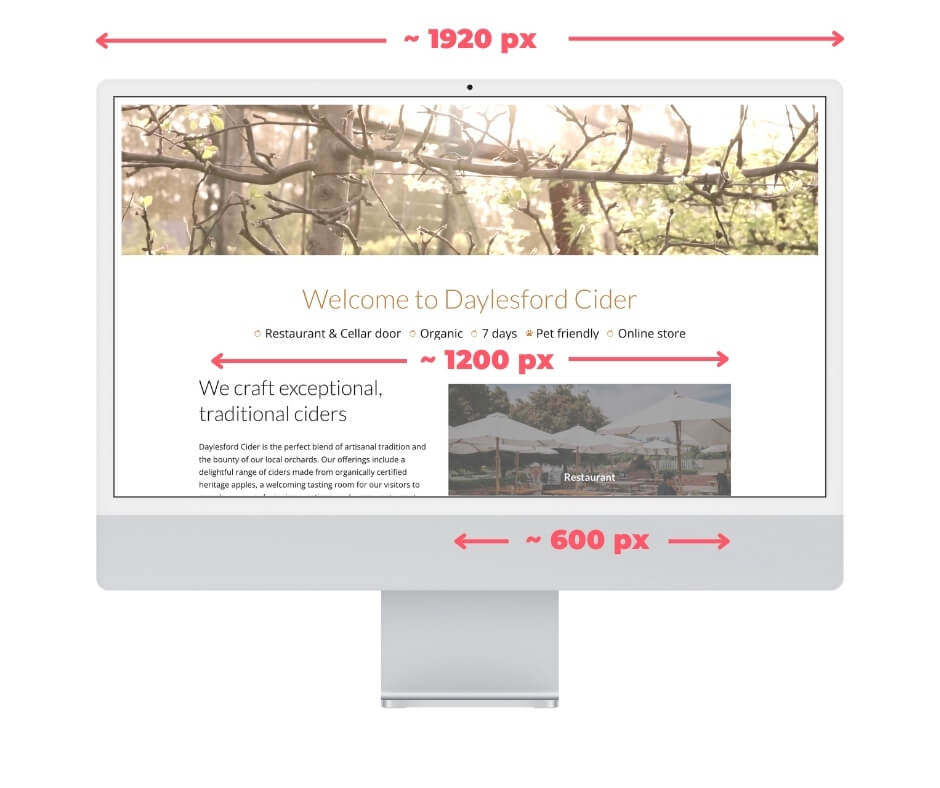
- Wrong dimensions. Uploading a 5000x3000px landscape photo when your hero banner only displays at 1920x1080px wastes storage and slows every page load.
- Wrong format. JPG and PNG were the standard for years. WebP is the standard now — and it’s significantly smaller for the same visual quality.
Fix these three things and your website gets faster, your Google ranking improves, and your visitors stay longer.
WebP is now the standard format: here’s what that means for you
WebP is an image format developed by Google. For the same visual quality, WebP files are 25–35% smaller than JPG and up to 80% smaller than PNG. That means faster load times with no visible drop in quality.
WordPress has supported WebP natively since version 5.8 (released July 2021). When you upload a WebP image, WordPress generates all the standard thumbnail sizes in WebP automatically.
For all new uploads, use WebP. Export or save as WebP before uploading. Do not upload JPG or PNG if you have the option to export WebP. There’s no benefit to the larger format.
If you’re on a Mac, you can export WebP directly from Preview. On Windows, use Paint 3D or any modern image editor. If you’re using Adobe products, WebP export has been standard since Photoshop 2021.
What about AVIF? AVIF is a newer format that’s roughly 50% smaller than JPG. Browser support is now good (Chrome, Firefox, Safari all support it), but WordPress support is not yet complete for AVIF thumbnail generation. WebP is the safe, reliable choice for 2026. AVIF is worth watching for 2027.
How to prepare images before you upload to WordPress
Prepare your images in this order, do not skip steps:
Step 1: Get the dimensions right. Resize your image to the maximum dimensions you’ll need on the website (see the dimensions guide below). Do this before converting to WebP, not after.
Step 2: Convert to WebP and compress. Two free tools work well here. Squoosh.app runs entirely in your browser with no account needed — open your image, select WebP, adjust the quality slider to hit your target file size. TinyPNG also converts to WebP and is faster for batch processing, though the free plan limits you to a handful of conversions per month. For occasional uploads, either works. Quality between 75–85% is usually the right balance for tourism photography.
Step 3: Name your file before uploading. WordPress uses the filename in the image URL. A file named DSC_4471.jpg tells Google nothing. A file named blue-mountains-eco-tour-zipline.webp tells Google exactly what the image shows. Use lowercase letters, hyphens between words, no spaces, no special characters.
That’s the full process: resize, convert, name, upload.
My existing images are too big what do I do?
If your site is already live and your images are oversized, you have a few options depending on how hands-on you want to be.
Option 1: Fix them yourself (free, takes time)
Download your oversized images from your media library, run them through Squoosh.app to resize and convert to WebP, then re-upload using the Enable Media Replace plugin. This replaces the existing image at the same URL without breaking any pages it’s used on. Good if you have a small site or just a handful of priority images to fix.
Option 2: Use a bulk compression plugin (free tier available)
Plugins like ShortPixel or Imagify will scan your media library and compress existing images in bulk. They won’t convert to WebP automatically on the free plan, but they’ll reduce file sizes without you touching individual images. Good if you have hundreds of images and want a quick win without manual work.
Option 3: Get Tourism Tribe to do it for you
If you’d rather not touch any of this yourself, Tourism Tribe can audit your site’s images, compress existing files, and set up WebP serving so all new uploads are handled automatically. Get in touch and we’ll take care of it.
The images that matter most are the ones on your highest-traffic pages — your homepage, your main tour or accommodation pages, and your top blog posts. Start there.
WordPress image sizes explained
When you upload an image to WordPress, it automatically creates multiple versions at different sizes. These are generated from the original you upload, so the quality of the resized versions depends entirely on the quality of the original.
| Size name | Dimensions | Used for |
|---|---|---|
| Thumbnail | 150 x 150px (cropped square) | Avatars, archive grids, gallery thumbs |
| Medium | max 300 x 300px | Inline blog images, sidebar images |
| Medium Large | max 768px wide | Tablet-width images, responsive displays |
| Large | max 1024px wide | Standard content images |
| Full size | Whatever you uploaded | Lightboxes, high-res downloads |
WordPress serves the appropriate size for the display context — it does not always serve the full-size image. This is why uploading a high-quality original matters: WordPress needs the resolution to generate clean smaller versions.
You do not need to manually create multiple sizes. WordPress handles this automatically.
File size targets for 2026
These are the maximum file sizes to aim for before uploading. Smaller is always better, as long as the image looks sharp on screen.
Hero banners (full-width, edge to edge):
- Dimensions: 1920 x 1080px
- File size: under 200kb in WebP
Hero images (contained width, not full bleed):
- Dimensions: 1200 x 720px
- File size: under 150kb in WebP
Content images (inside a blog post or page):
- Dimensions: 1200 x 900px
- File size: under 100kb in WebP
Thumbnails and small images:
- Dimensions: up to 800px wide
- File size: under 50kb in WebP
These targets are achievable with Squoosh.app. If your WebP is still over the limit at quality 75%, reduce the dimensions first, then compress again.
Alt text: the step most operators skip
Alt text is a short written description of an image. It serves two purposes: screen readers use it to describe images to visitors with visual impairments, and Google uses it to understand what an image shows.
Most operators leave alt text blank. That’s a missed opportunity for both SEO and accessibility.
How to add alt text in WordPress:
- Upload your image via Media Library.
- Click the image in the Media Library.
- In the right-hand panel, find the “Alt Text” field.
- Write a plain-English description of what the image shows.
What makes good alt text:
- Describe the image specifically: “Guests kayaking through mangroves at Moreton Bay, Queensland” beats “people kayaking”.
- Include your location and product name where natural.
- Keep it under 125 characters.
- Do not start with “Image of” or “Photo of” — screen readers already announce it’s an image.
- Do not stuff keywords. Write for a person who can’t see the image.
If you named your file well before uploading (Step 3 above), you’re halfway there already. The filename and alt text should describe the same thing, just in slightly different formats.
Alt text and AI search. AI tools like ChatGPT, Perplexity, and Google AI Overviews crawl your pages to find answers to travel questions. They read alt text and filenames to understand what your images show — and by extension, what your business offers. A photo of your tour with alt text reading “guided sunset kayak tour on the Noosa River” tells an AI tool exactly what experience you provide, in what location. That’s the kind of specific, contextual information that gets your business surfaced when a traveller asks an AI assistant what to do in Noosa. Page speed also matters: slow-loading pages get crawled less frequently by AI bots. Optimised images help here too.
Can I upload WebP images to WordPress?
Yes. WordPress has supported WebP uploads natively since version 5.8, released in July 2021. When you upload a WebP file, WordPress automatically generates thumbnail and medium sizes in WebP format. There is no plugin required and no special settings to change.
What is the difference between WebP and AVIF?
Both WebP and AVIF are modern image formats that produce smaller file sizes than JPG or PNG at the same visual quality. WebP is the reliable standard for 2026 with full WordPress support. AVIF is newer and produces files roughly 50% smaller than JPG, but WordPress does not yet fully support AVIF for automatic thumbnail generation. Use WebP now and revisit AVIF in 2027.
How do I convert images to WebP for free?
Two options. Squoosh.app runs entirely in your browser with no account required. Open your image, select WebP, adjust quality, download. TinyPNG also converts to WebP and is slightly faster, but the free plan limits you to a small number of conversions per month. For occasional uploads Squoosh.app is the better choice; if you’re processing many images at once, TinyPNG’s paid plan is worth considering.
Do I need an image compression plugin?
No. If you prepare images correctly before uploading (right dimensions, WebP format, under the file size targets in this guide), a compression plugin adds nothing. Prepare your images in Squoosh.app before they hit WordPress and thereu0026#8217;s nothing left to compress.
Get your images right before they hit WordPress and you won’t need to fix them later. The process is: resize to the right dimensions, convert to WebP in Squoosh.app, name the file descriptively, then upload and add alt text. Do that consistently and your site will load faster, rank better, and look sharper on every device.
Pocket Rocket App — Free
Your free AI marketing coach, right in your pocket
The free Pocket Rocket app gives you a personal AI marketing coach, website audit, weekly action plans and 5-minute tips. Built for tourism operators.