
How to Make Talking Head Reels for Your Tourism Business Using Canva
March 19, 2026

Most tourism operators know they should be making reels. Almost none of them are. In this Tourism Tech Session, Julia Retson walked through the exact steps to build a talking head reel in Canva, from layering footage to exporting and posting in a way the algorithm actually rewards.
Quick links
- Watch the recording
- What are Tourism Tech Sessions?
- Why authenticity beats polished video right now
- How to build a talking head reel in Canva
- Where to add captions, stickers, and music
- How Gemini can write your reel scripts
- Things to try this week
Watch the recording
If you’re a Tourism Tribe member, login here to watch the recording of this session.
What are Tourism Tech Sessions?
Our Tourism Tech Sessions are twice monthly group coaching calls designed to support AI Enablement Plan members, whether you’re a direct member or a participant of one of our tourism digital capability programs. These sessions provide a space to:
- Learn the latest developments in tourism tech
- Ask questions in a safe, supportive environment
- Hear real-life examples and get practical demos
- Get the confidence to implement what you’ve learned
If you’re not a member, this article will walk you through the key takeaways. Join an AI Enablement Plan to access future Tourism Tech Sessions and have an expert at your fingertips to ask your business-specific questions.
Why authenticity beats polished video right now
Overly polished videos now read as AI-generated. Viewers have started associating high-production quality with artificial content, which means a less-produced video from a real person often performs better.
Julia put it plainly in the session: people actually like it better with bloopers. In her first reel ever she was in a tank top with no makeup, just quickly videoed herself speaking for a few sections about a relevant topic using her phone, posted it, and immediately felt more confident to make the next. Because if the topic is relevant, you’ll get the comments and likes. The reluctance to start is the real blocker, not the quality of your equipment.
You do not need a microphone, a ring light, or a studio. Your phone is enough. If your phone is fewer than two or three years old, the camera quality is more than adequate for reels. Apps like Canva by Canva Pty Ltd and CapCut by ByteDance can also clean up background noise and CapCut can even apply a subtle light-makeup filter if that helps you get on screen.
How to build a talking head reel in Canva
Julia demonstrated the process using Canva because most Tourism Tribe members already use it. The same workflow applies in CapCut and Google Vids by Google, just with slightly different interfaces. Here are the steps she walked through:
- Create a new file using Mobile Video format. This gives you the correct portrait resolution for TikTok and Instagram Reels. The Story and Reel format options work too.
- Add background footage from your uploads, or, if you’re just testing grab some video from the Elements panel. Use your own real footage where possible. If you use stock footage, avoid anything too bright or staged, choose footage that looks unedited and real.
- Upload your talking head clip and drag it over the background as a layer. When you drag it onto the timeline, a purple highlight shows where it will drop. (When we say talking head clip, we just mean a video of you talking to camera. Mostly the video will have you close up so you just see your head and shoulders.)
- Remove the background from your talking head clip using Canva’s Background Remover tool, which is a Canva Pro feature. If you are on the free plan, you can achieve the same result using TikTok’s native cutout tool after upload.
- Position yourself carefully. TikTok and Instagram crop the top and bottom of the frame when displaying thumbnails in the grid. Make sure your face stays within the visible zone.
- Trim the start of your clip so you are speaking from the first second. A few seconds of silence at the start is harmful on TikTok and Instagram. Pull the white trim handle in the timeline to cut the lead-in.
- Set the clip speed. Reels perform better at a slightly faster pace. If you find your talking head video is a bit slow, you can speed it up by selecting the clip, clicking Speed, and moving the slider. We often find 1.1x works well with the videos we make of ourselves, above 1.2x or so the speech generally becomes unnaturally fast, but each video is different.
- Export as MP4 using Share, then Download. MP4 is the format both TikTok and Instagram accept.
One warning from the session: if you extract the audio as a separate layer then trim the video clip, the audio and video can lose sync if you later move either of them. Only split audio if you specifically want the audio to play over different footage. Otherwise, leave it attached.
Always save your original, uncut, high-resolution footage somewhere safe on the cloud. Testimonials and strong content filmed for one reel can be repurposed years later. Once you delete or cut the original, that option is gone.
Where to add captions, stickers, and music
Finish your reel in Canva, export it, then add captions, text, stickers, and music inside TikTok or Instagram natively. Do not bake these elements into the video file before uploading.
Both TikTok and Instagram reward content made with their own built-in features. A reel with native captions, trending music, and platform stickers consistently outperforms an identical reel with everything pre-baked. The platforms want you creating inside their tools.
Fabienne shared a direct example in the session: a video where an app crash meant only one layer, her speaking, uploaded, with none of the Canva animation. That stripped-back version outperformed videos she had spent far more time producing in CapCut. The native tools make a measurable difference.
- Use trending features, even if they seem arbitrary. At the time of writing this blog, TikTok’s 4K effect was getting additional reach. If the platform suggests a new sticker or effect, test it.
- Pick a trending song. TikTok shows your video to people who have watched other videos with that same song. That is free distribution you do not get by uploading pre-mixed audio.
- Always review your auto-captions fully. Automated captioning often misreads Australian accents especially. Check every line before posting. One misheard word can produce an accidental swear word in your captions.
- Update your app before you start. Features appear and disappear based on app version. If something you read about is not there, update the app first.
- Engage after you post. On Instagram especially, spending 10 minutes engaging with comments and other accounts immediately before and after you post sends positive signals to the algorithm. Post and disappear, and you leave reach on the table.
How Gemini can write your reel scripts
If you have Google Workspace, you do not need to figure out what to say on camera. Gemini by Google can pull ideas and write scripts from content you already have.
Enable Gemini to crawl your Workspace by going to the Connected Apps settings at the bottom left of gemini.google.com, switching on Workspace integration, then typing @Workspace (capital W) in a new chat. Ask Gemini to find ideas for reels based on your existing documents, videos, or emails. Ask it to write a full script. Refine the parts you want to change. Copy the final version.
Then use the teleprompter feature in CapCut or the Record function in Google Vids to display the script on screen while you film. You read it off the screen and the app records you simultaneously. You sound more prepared without memorising anything.
Or, sign up below to gain access to a free trial of Robin, our in-house social media content writing tool that uses your own brand voice to quickly create practical usable content in seconds.
Things to try this week
- Film a 30-second talking head video today on your phone. Do not wait for a better setup. Get one take done and move on.
- Open Canva and select Mobile Video. Build one reel using that footage plus a background clip from your own files or Canva’s library. Aim for under 30 seconds total.
- Export as MP4, then open TikTok or Instagram. Add captions, a trending sticker, and music natively inside the app before posting. Do not add these in Canva.
- Enable Gemini Workspace integration at gemini.google.com, Connected Apps if you work in Google Workspace. Then type @Workspace and ask for three reel ideas based on content already in your account.
- Post the reel and tag Tourism Tribe so the team can share it with the community.
- Spend 10 minutes engaging on TikTok or Instagram right after you post. Reply to comments, engage with relevant content, and watch how the algorithm responds over the following 24 hours.
Want to get your tourism business more visible online?
Making reels is one part of the picture. Knowing where video fits your wider digital strategy is another. Tourism Tribe offers three ways to help:
- GEO Assessment: find out how visible your business is to AI tools right now
- Digital Direction Plan: a personalised roadmap for your digital and AI strategy
- AI Enablement Plans: ongoing access to Tourism Tech Sessions, tools, and hands-on support
- Sign up below to get a free trial of Robin: our in-house social media content writing tool that uses your business’s brand voice to quickly create practical usable reel scripts and captions in seconds.
Do I need a ring light or microphone to start making reels?
No. Your phone is all you need to get started. If your phone is under two years old, the camera quality is more than adequate for reels on TikTok or Instagram. Apps like CapCut by ByteDance can clean up background noise after recording. Add equipment later once you have the habit of posting. Join an AI Enablement Plan to attend live Tourism Tech Sessions and get answers to your specific setup questions.
Should I add captions in Canva or inside TikTok and Instagram?
Add captions inside TikTok or Instagram natively after uploading, not in Canva. Both platforms reward content that uses their own built-in tools. Videos with native captions and trending stickers consistently outperform those with captions baked in at export. Always review the auto-generated captions before posting, as automated tools often misread Australian accents.
What video speed works best for talking head reels?
Set the speed to 1.1x in your editing app. In Canva, select the clip, click Speed, and adjust the slider to 1.1. Reels perform better at a slightly faster pace because the format rewards quick, dense content. Avoid going above 1.2x or the speech starts to sound unnatural.
How do I remove my background in a reel without Canva Pro?
Use the cutout tool inside TikTok after uploading your video. The native cutout feature lets you isolate your talking head from the background without any paid subscription. Instagram also has background removal in its editing flow. Canva’s Background Remover is a Pro-only feature, but both platform alternatives work well for talking head reels.
What does using native features mean on TikTok and Instagram?
It means adding captions, stickers, music, and effects inside the TikTok or Instagram app, rather than baking them into the video file before uploading. Both platforms algorithmically favour content created using their own tools. Picking a trending sound in TikTok in particular helps your video reach viewers who have watched other videos using that same audio.
How can Gemini write reel scripts from my existing content?
Enable Workspace integration in Gemini by going to Settings at gemini.google.com, clicking Connected Apps, and switching it on. In a new chat, type @Workspace with a capital W and ask Gemini for reel ideas based on your existing emails, documents, or videos. Ask it to write a full script, refine what you want to change, and copy the result. Use CapCut or Google Vids to display the script on screen while you record. Catch up on all Tourism Tech Sessions for more demonstrations of AI tools for tourism operators.
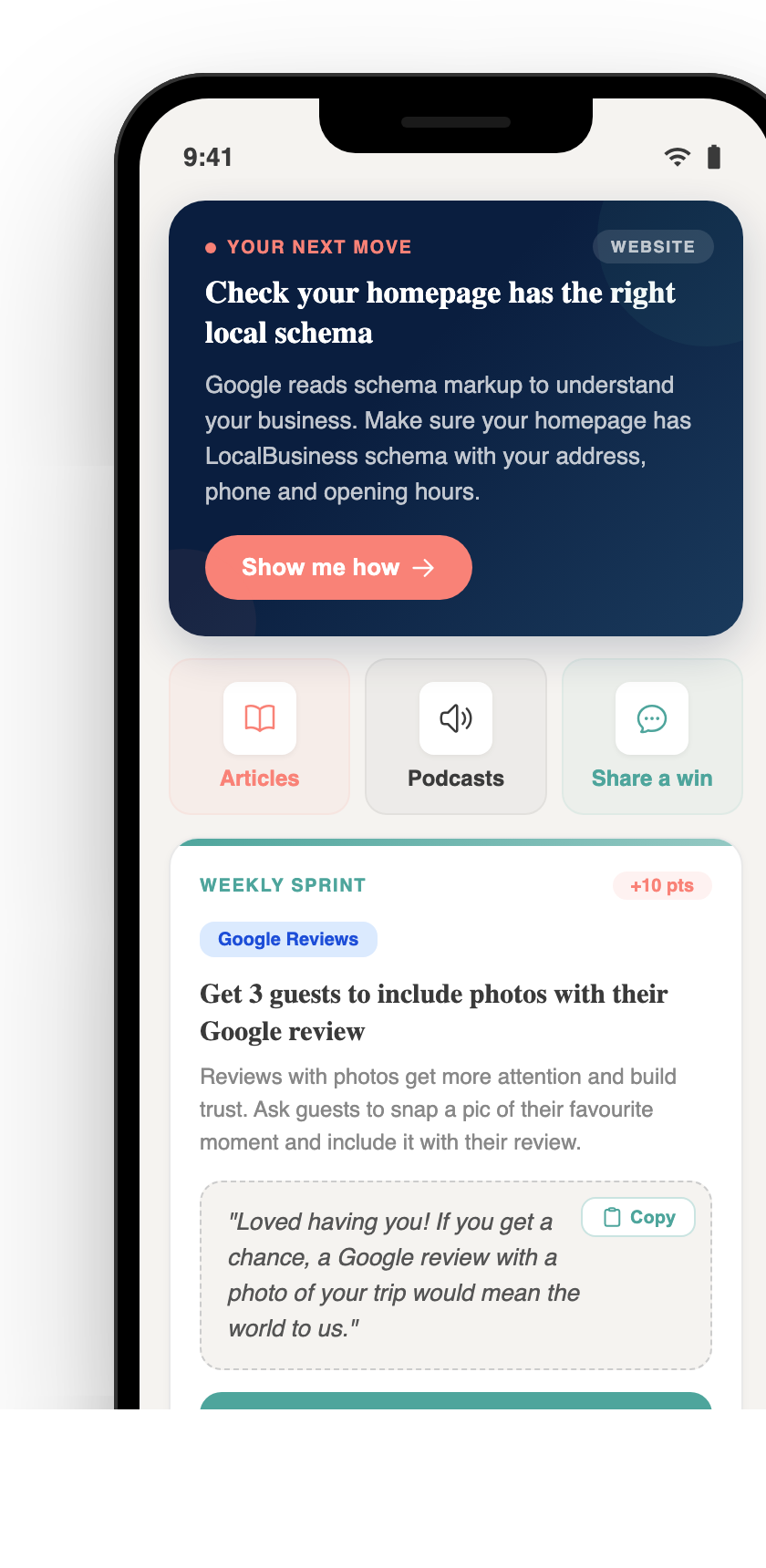
Pocket Rocket App — Free
Your free AI marketing coach, right in your pocket
The free Pocket Rocket app gives you a personal AI marketing coach, website audit, weekly action plans and 5-minute tips. Built for tourism operators.